
WGS ClientX – Client Area & Dashboard Settings Guide
How to Change the Client Area Dashboard Style
The ClientX theme allows you to switch between multiple Client Area dashboard layouts and customize each layout using built-in template controls.
Accessing Dashboard Layout Settings
Before configuring any dashboard style, follow these steps:
-
Log in to your WHMCS Admin Panel.
-
Navigate to Addons > WGS ClientX > Settings.
-
Click Settings and open the Page Settings tab.
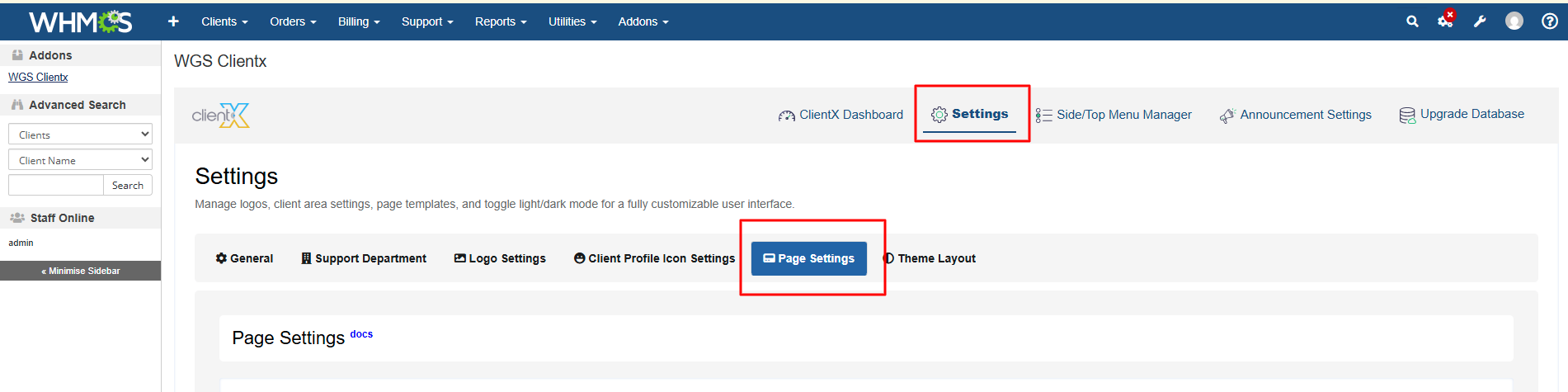
Managing Client Area Dashboard Layouts
-
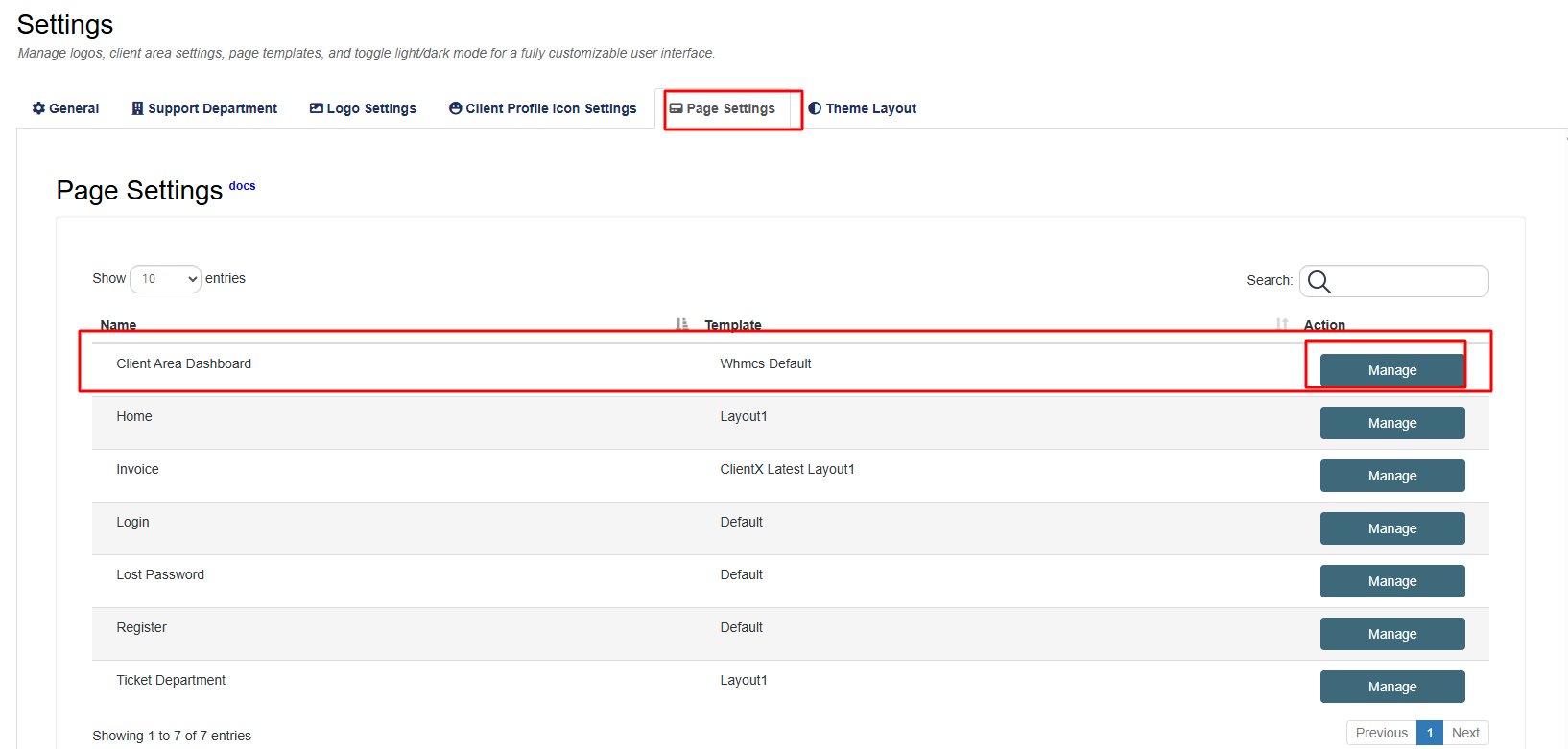
Under the Page Settings tab, locate Client Area Dashboard.
-
Click the Manage button next to it.
-
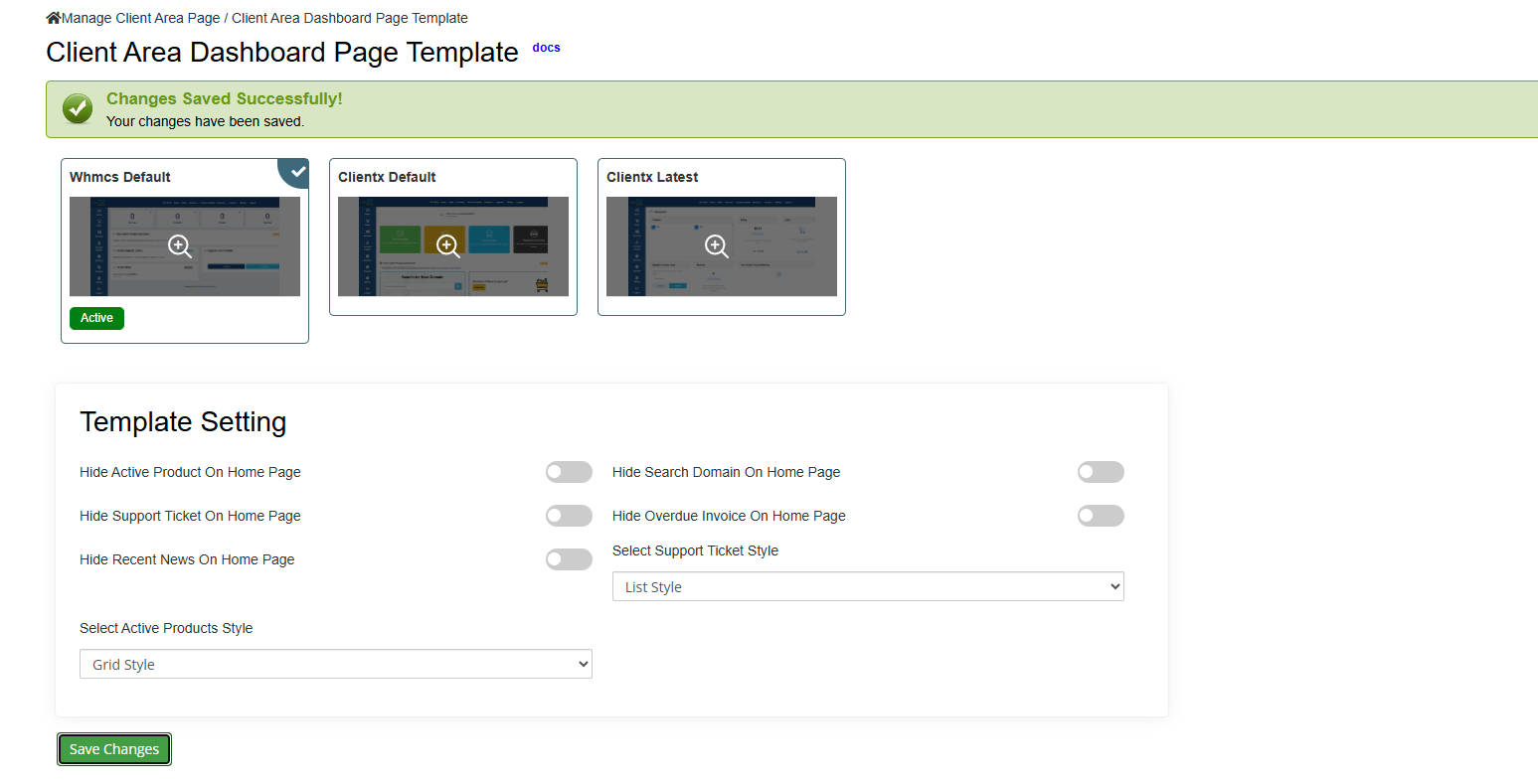
You will be redirected to the Client Area Dashboard Page Template screen.
Available Dashboard Layout Options
On this screen, you will find three dashboard layout options:
-
ClientX Default
-
ClientX Latest
-
WHMCS Default
Select your preferred layout and click Save Changes to apply it.
WHMCS Default Layout
Layout Preview
-
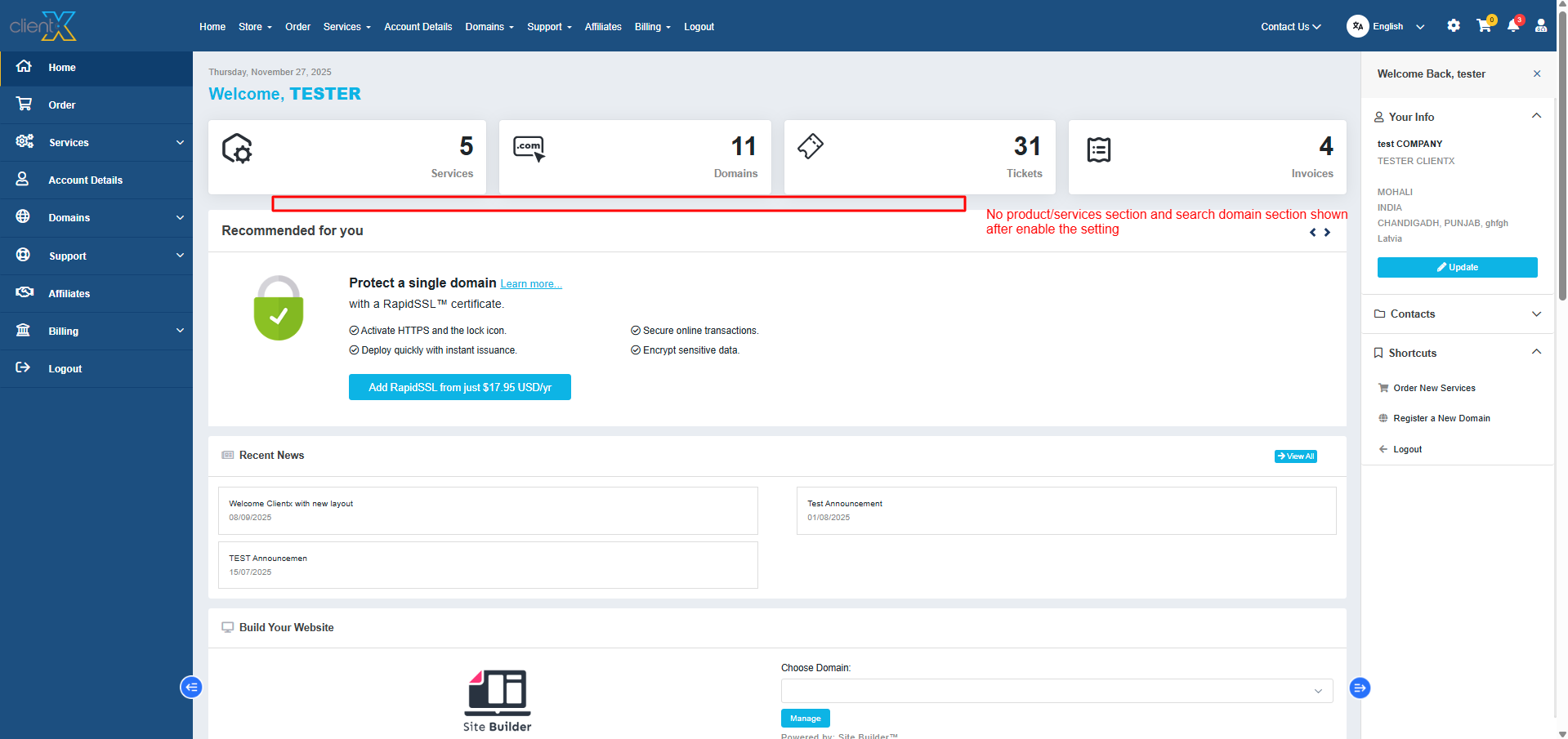
When WHMCS Default is selected, the client dashboard will display using the standard WHMCS layout.
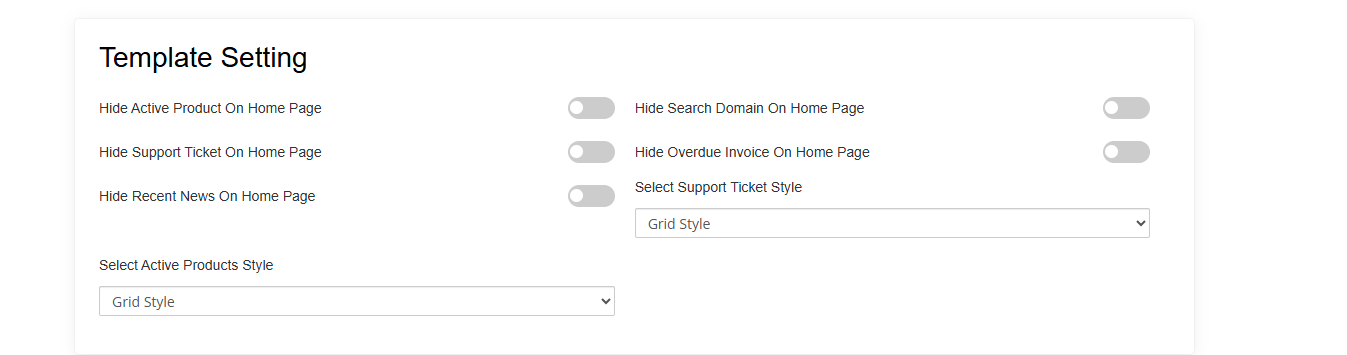
Template Settings (Customization Options)
Each dashboard layout includes Template Settings, allowing you to control which sections are visible and how they are displayed.
Available customization options include:
-
Show or hide dashboard sections
-
Change section display style (Grid, List, Slider)
Example: Customizing WHMCS Default Layout
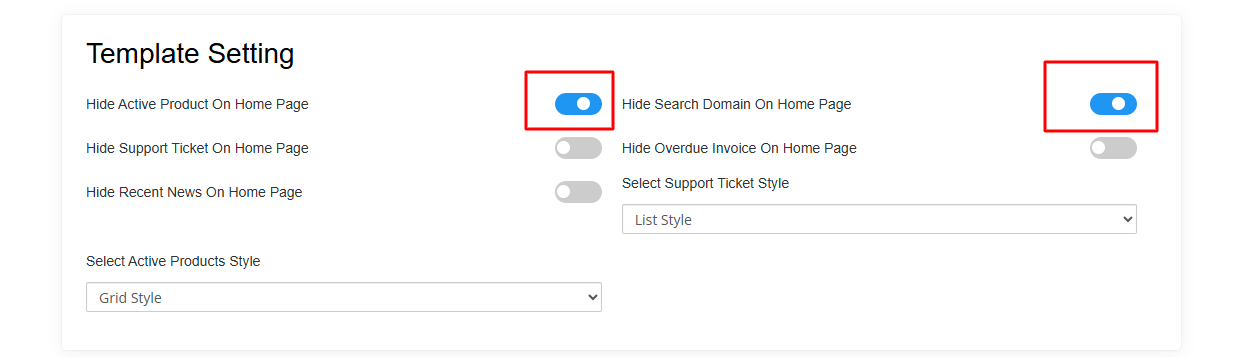
If you want to hide specific sections such as Products/Services or Domain Search:
-
Enable the following options:
-
Hide Active Product On Home Page
-
Hide Search Domain On Home Page
-
-
Click Save Changes.
The selected sections will be hidden from the client dashboard frontend.
You can also change the Products/Services section display style to:
-
Grid
-
List
-
Slider
ClientX Default Layout
-
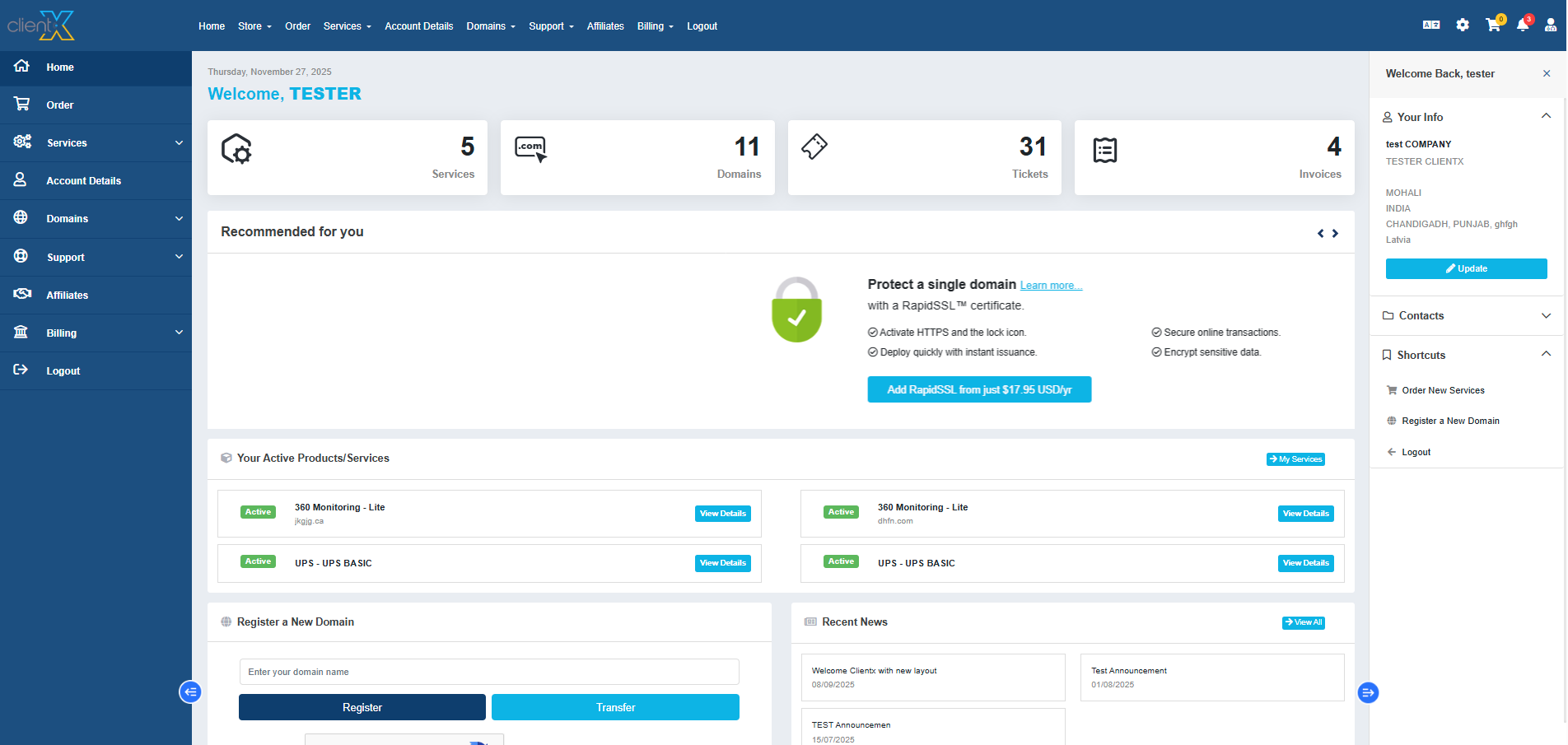
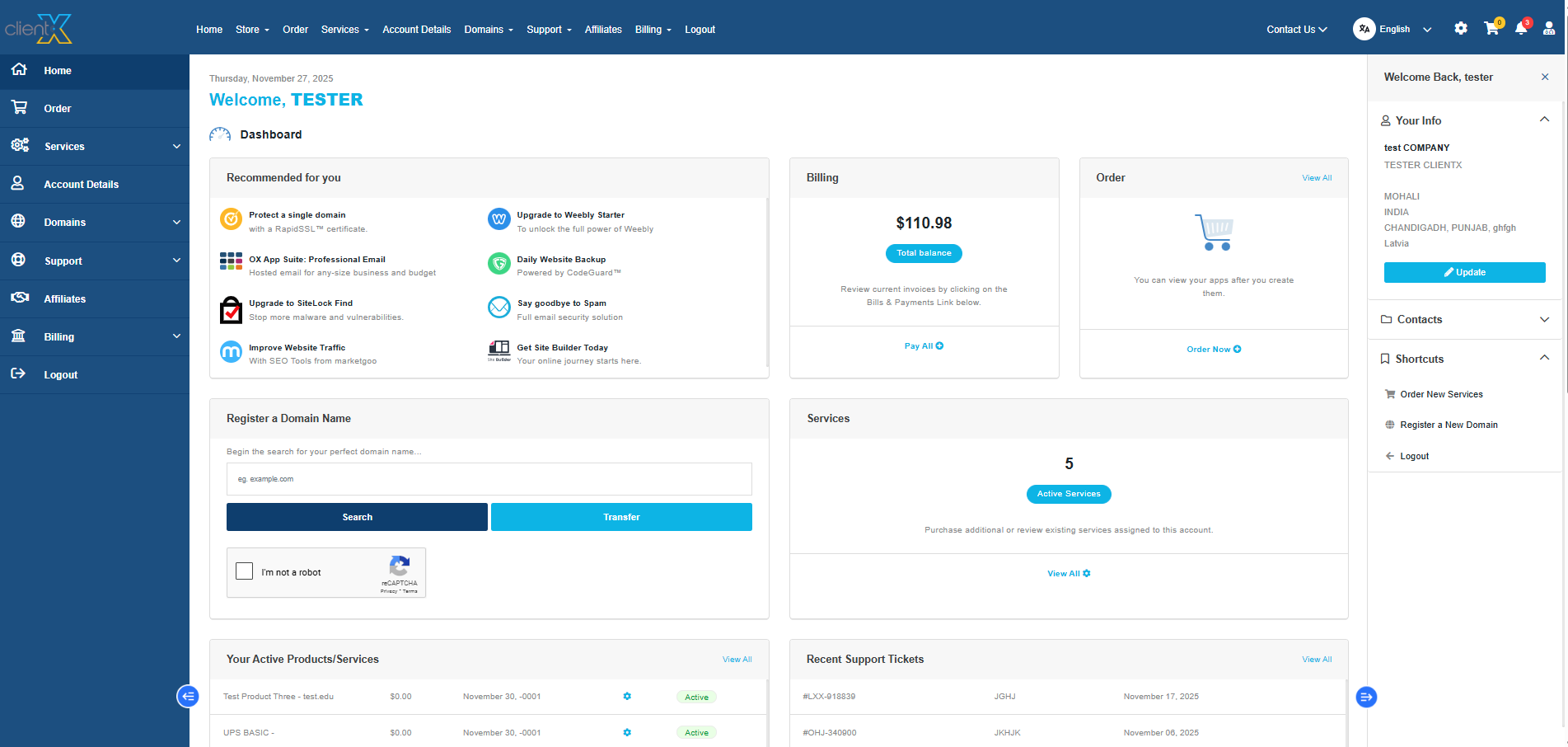
When ClientX Default is selected, the dashboard will display the classic ClientX-designed layout.
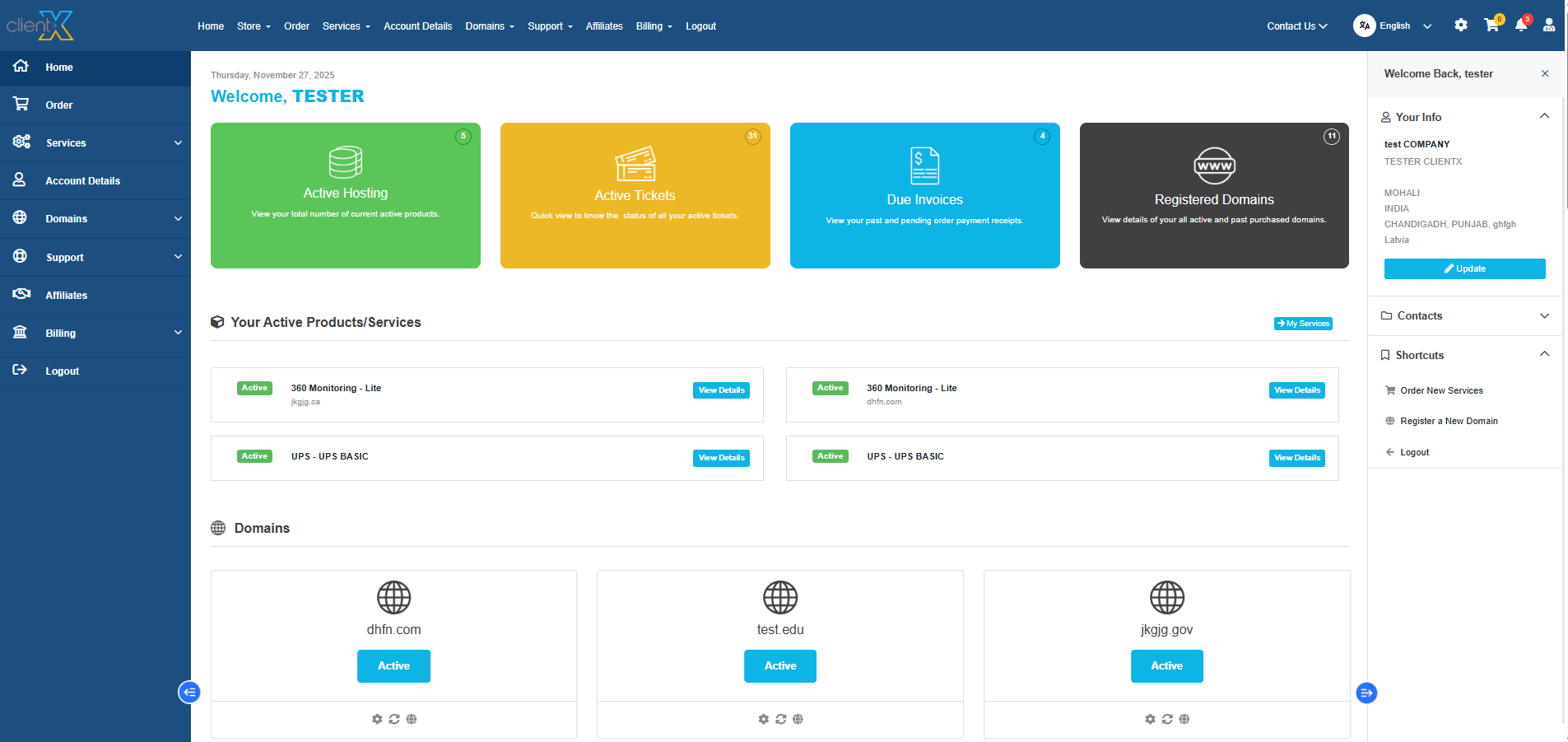
ClientX Latest Layout
-
When ClientX Latest is selected, the dashboard will display the newest ClientX layout with a modern UI and enhanced visual structure.
Common Customization Across All Layouts
-
The Template Settings options are available for all dashboard layouts
-
You can:
-
Hide or show specific sections
-
Change section display styles
-
Control dashboard content visibility based on your preferences
-
This allows full flexibility while maintaining a consistent ClientX experience.
