
WGS ClientX – Client Area & Lost Password Guide
How to Change the Layout of the Lost Password Page
ClientX allows you to choose from multiple layouts for the Lost Password page, ensuring a consistent and user-friendly password recovery experience.
Accessing Lost Password Page Settings
Before modifying the Lost Password page layout, follow these steps:
-
Log in to your WHMCS Admin Panel.
-
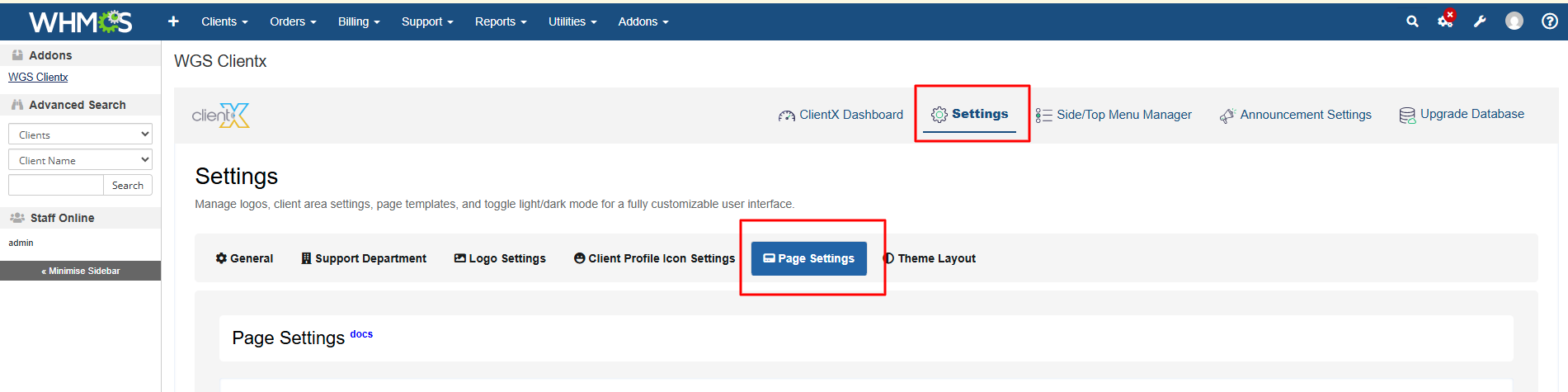
Navigate to Addons > WGS ClientX > Settings.
-
Click Settings and open the Page Settings tab.
Managing Lost Password Page Layout
-
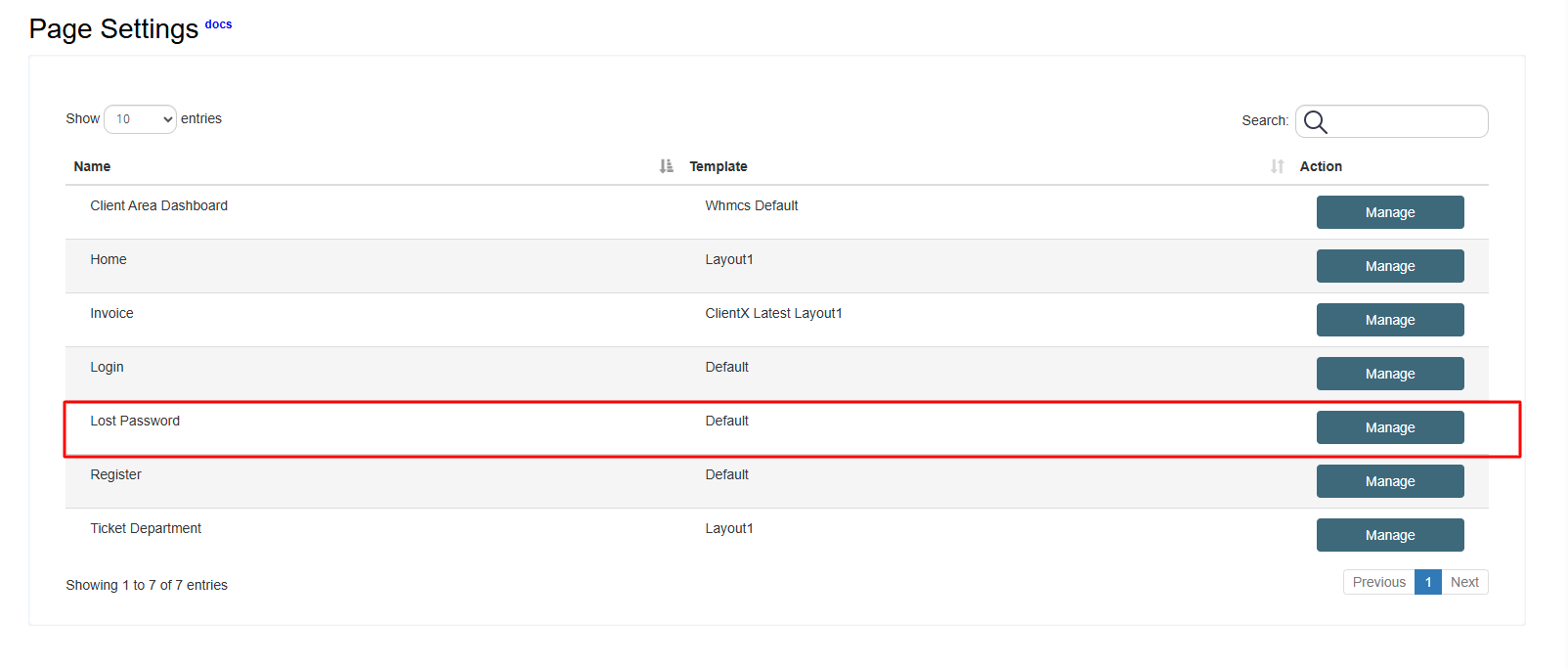
Under the Page Settings tab, locate the Lost Password section.
-
Click the Manage button.
-
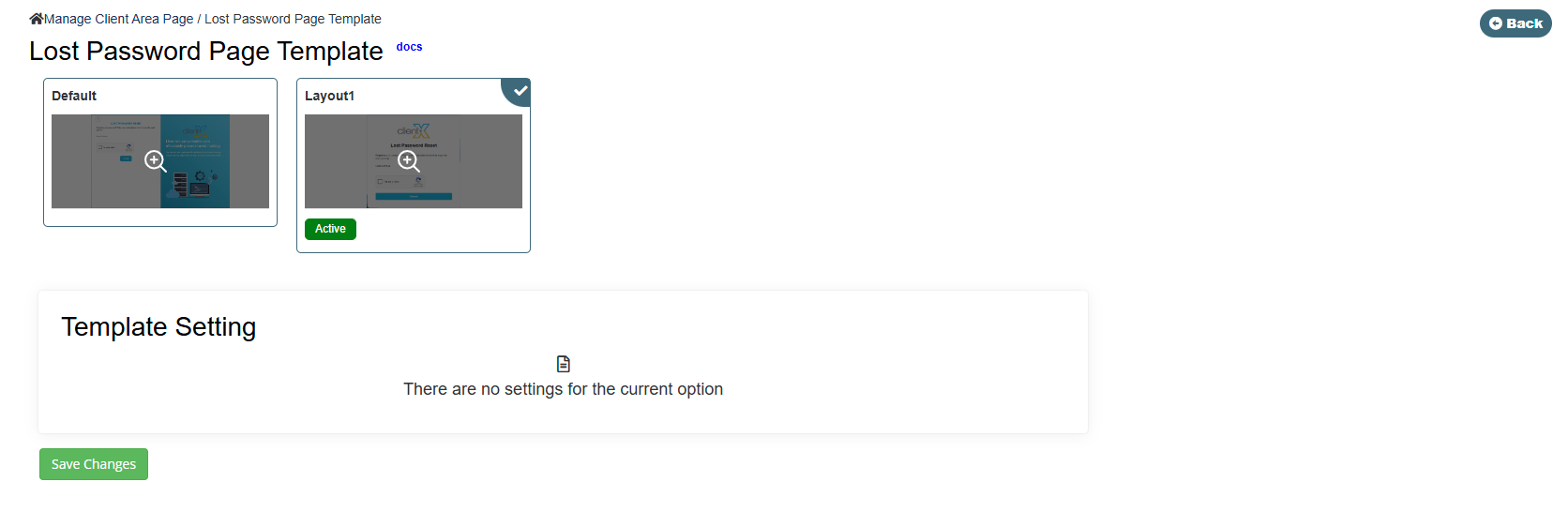
You will be redirected to the Lost Password Page Template screen.
Available Lost Password Page Layout Options
On the Lost Password Page Template screen, you will find the following layout options:
-
Default Layout
-
Layout 1
-
Layout 2
Select your preferred layout and click Save Changes to apply it.
Default Layout
Frontend Preview
-
When the Default Layout is selected, the Lost Password page will appear on the frontend as shown below.
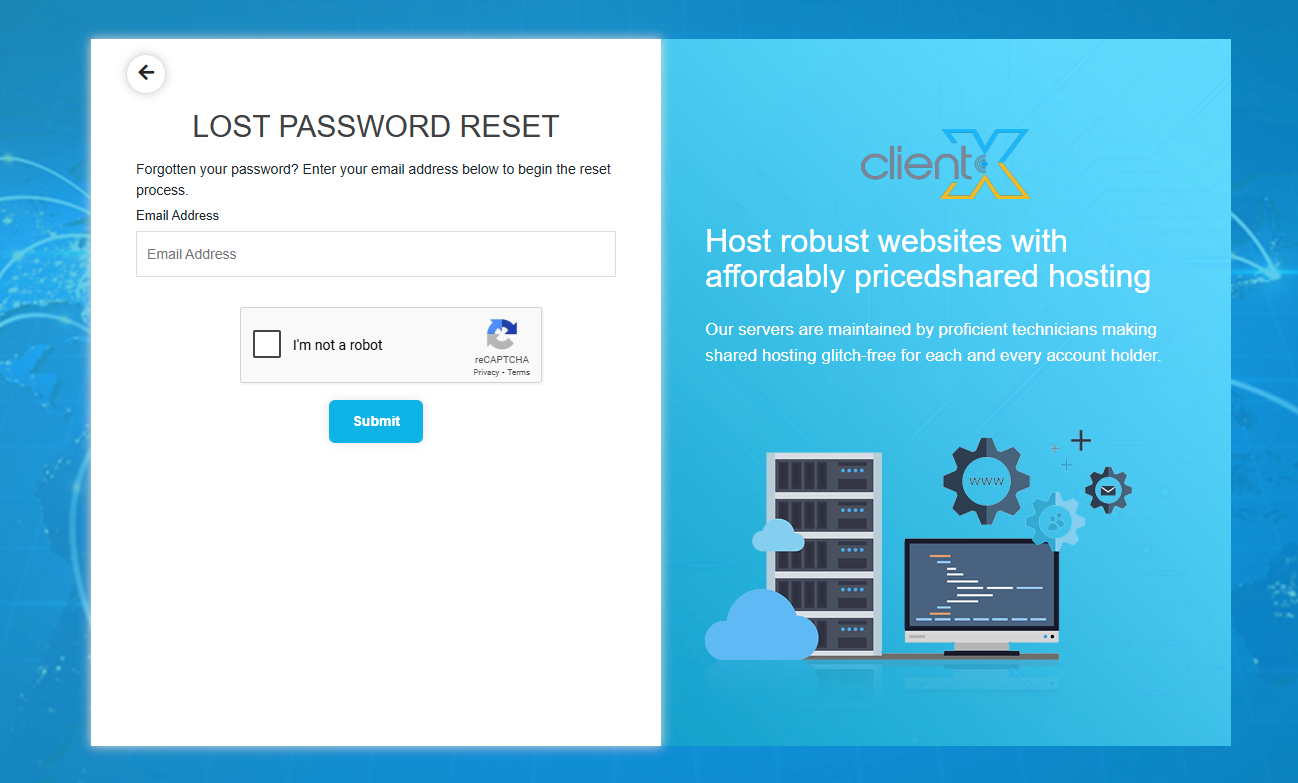
This layout follows the standard ClientX styling for password recovery.
Layout1
Frontend Preview
-
When Layout 1 is selected, the Lost Password page will appear as shown below.
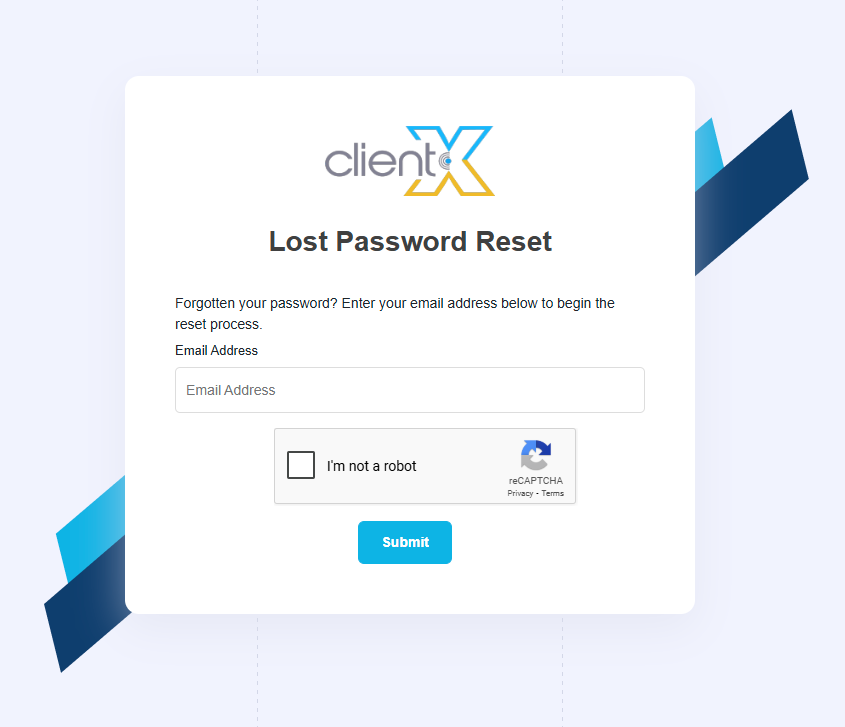
This layout offers a simplified and clean password reset interface.
