
Customize Theme Colors (Light & Dark Mode)
-
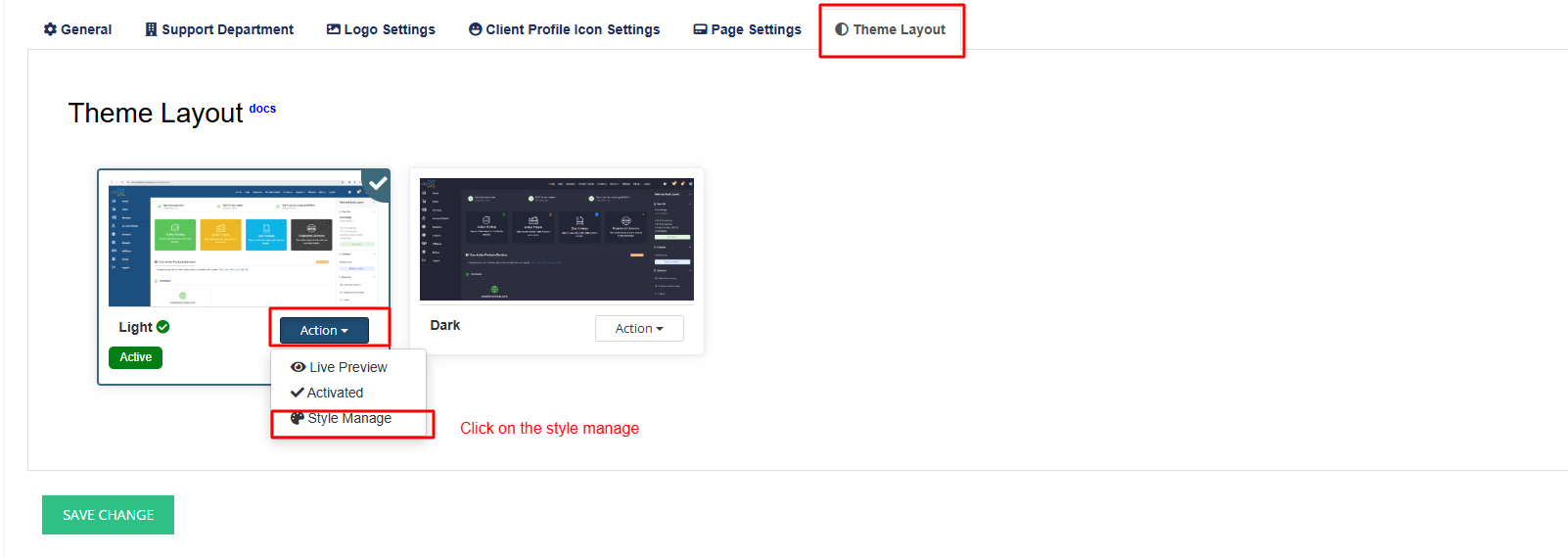
Go to Theme Layout and select either Light Mode or Dark Mode.
-
Under the Action column, click Style Manage and enable Custom Settings (Theme Color Manager).
Before Enabling Custom Settings
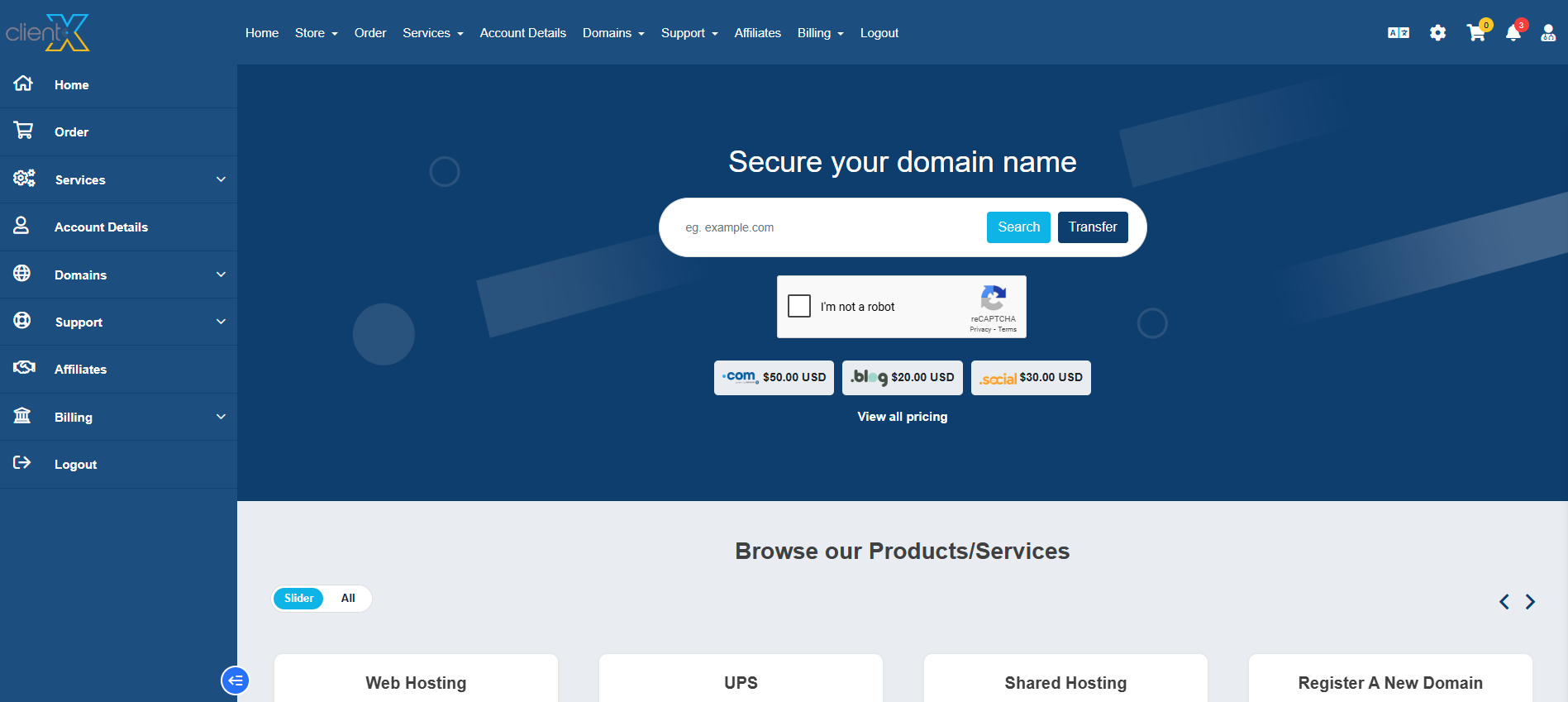
When Enable Custom Settings is disabled, the Light theme uses the default ClientX color scheme, as shown in the attached screenshot below.
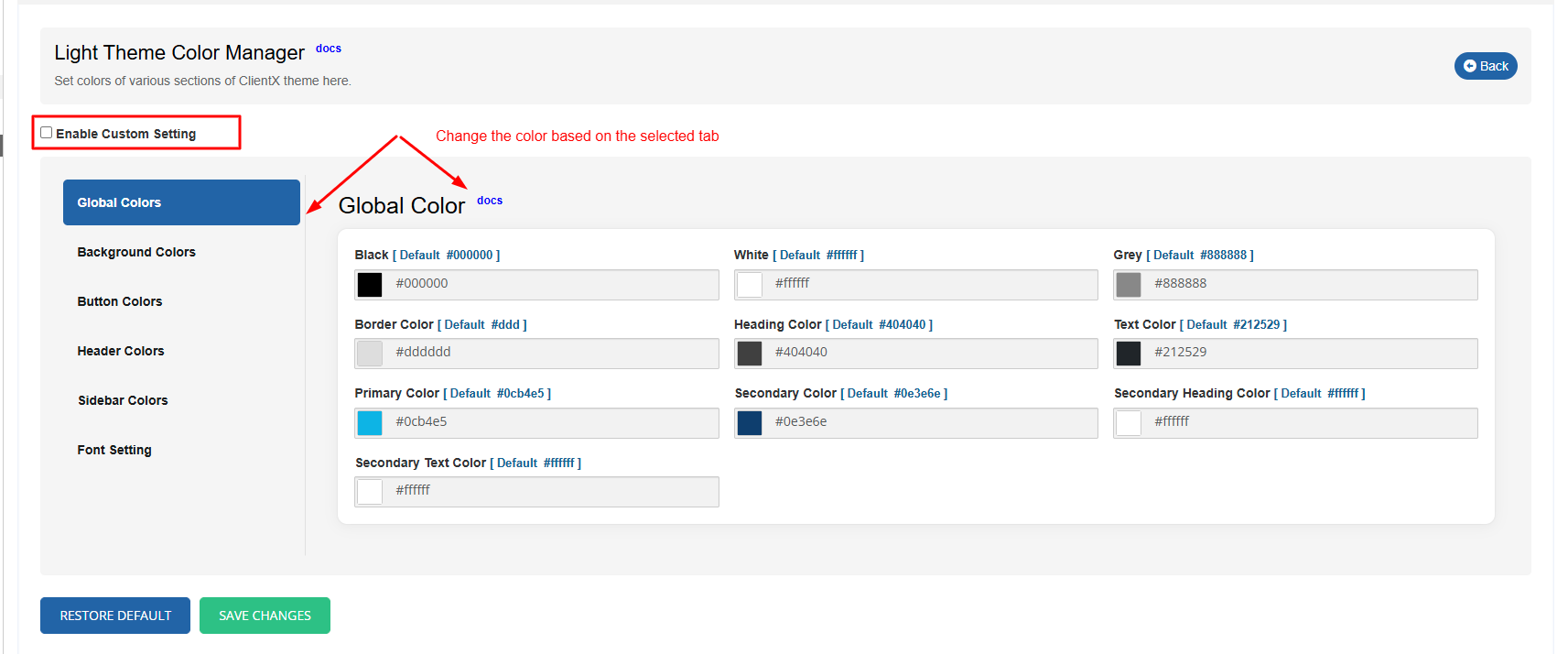
Once enabled, you can customize:
-
Header Background Color
-
Sidebar Background Color
-
Button Colors
-
Text & Accent Colors
After making changes, click Save Changes to apply them across the Client Area.
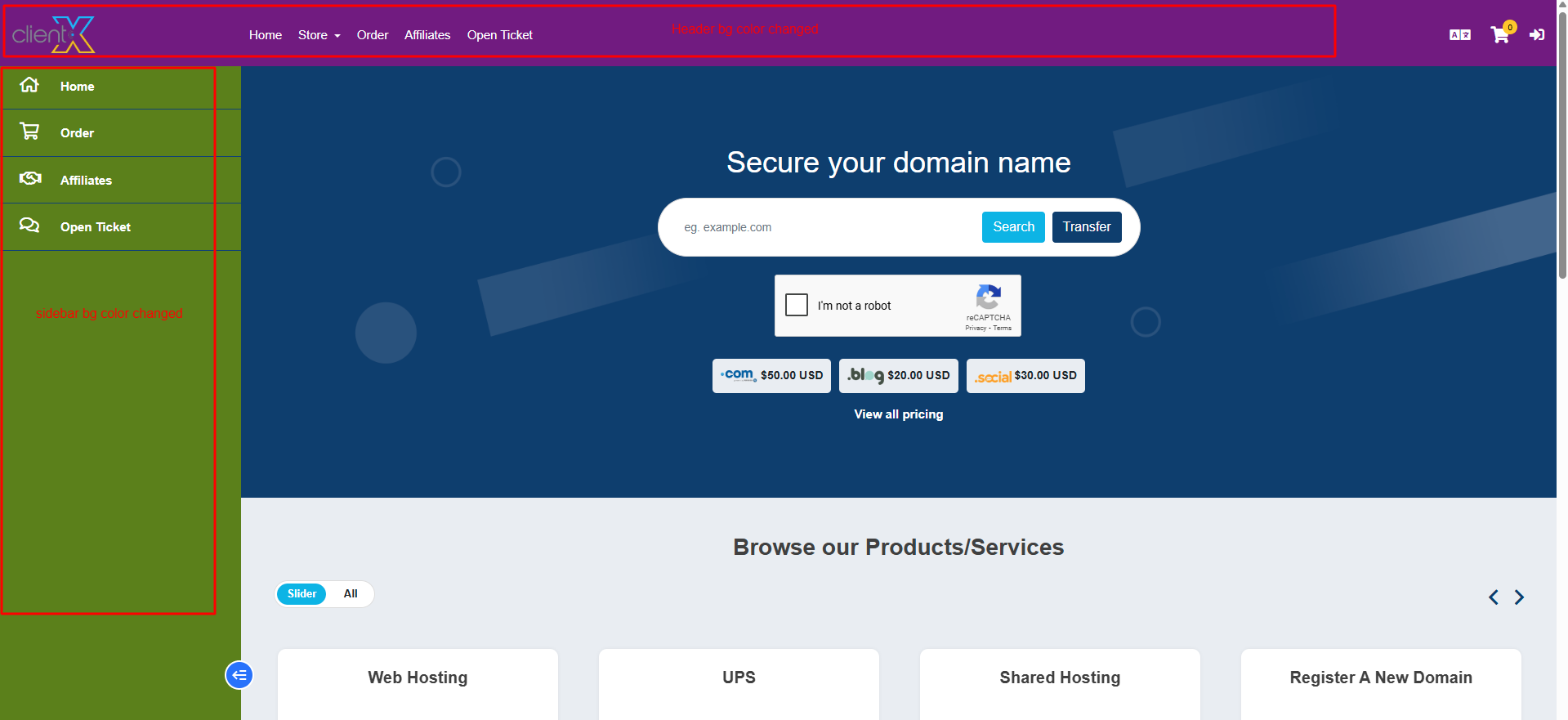
The updated Light theme with custom colors will be displayed across the Client Area, as shown in the attached screenshot below.
Restore Default Colors
To revert to the original ClientX color scheme, click Restore. All custom colors will reset to default settings.
Dark Mode Customization
The same customization steps apply to Dark Mode.
Simply select Dark Mode in the Theme Layout tab, click Style Manage, enable Custom Settings (Theme Color Manager), and modify the available color options as needed.
Click Save Changes to apply the updates.
