
WGS ClientX – Client Area & General Settings Guide
This guide explains how to configure Client Area and Navigation settings in the WGS ClientX Addon Module.
Before proceeding, ensure the addon module is installed and activated.
Accessing ClientX Settings
Follow these steps once before configuring any option:
-
Log in to your WHMCS Admin Panel.
-
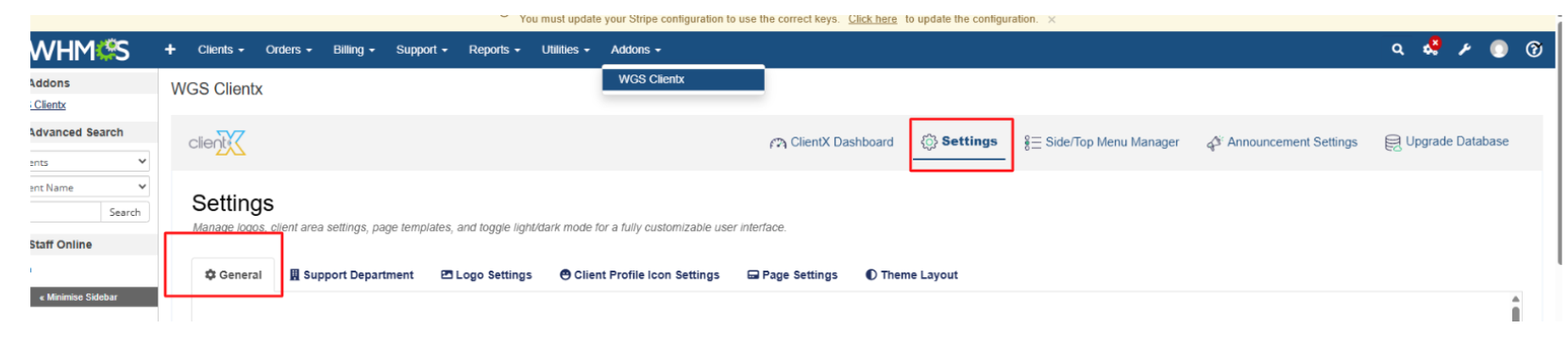
Navigate to Addons → WGS ClientX → Settings.
-
Click Settings to open the General tab.
Advanced Page Settings
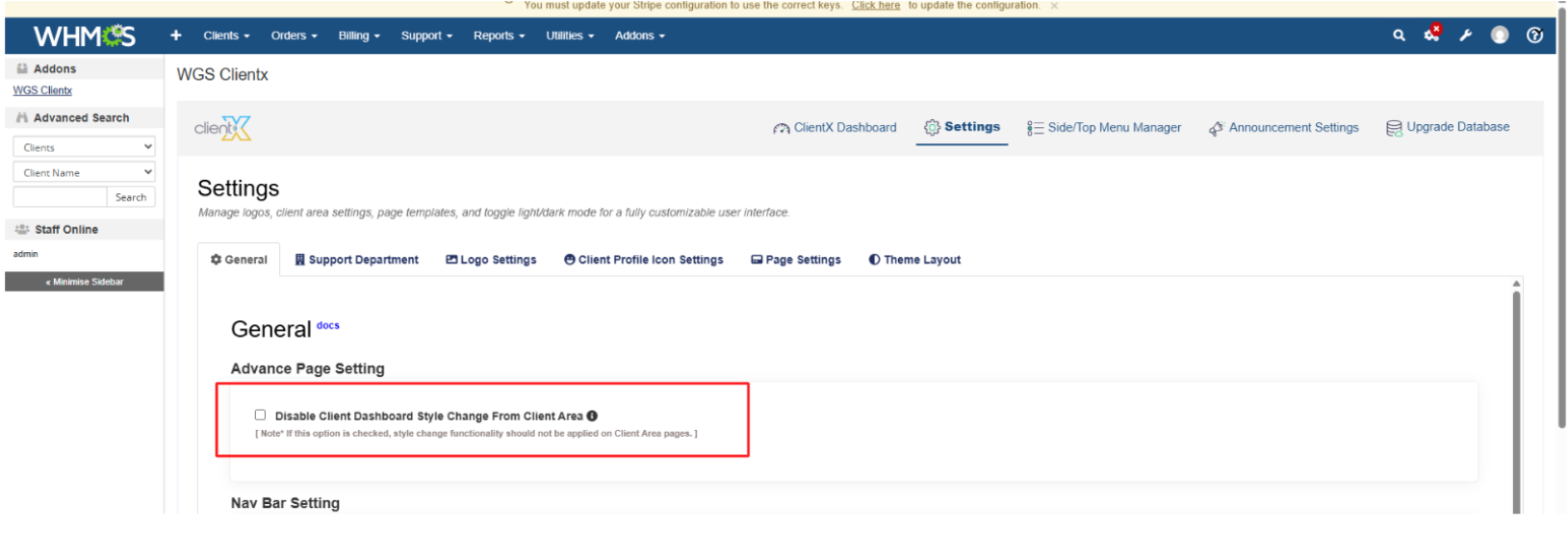
Disable Client Dashboard Style
By default, ClientX allows users to switch dashboard styles from the client area.
-
Enable this option to disable the Client Area dashboard style selector.
-
When enabled, the dashboard style option is removed from the client area header menu.
Navigation Bar Settings
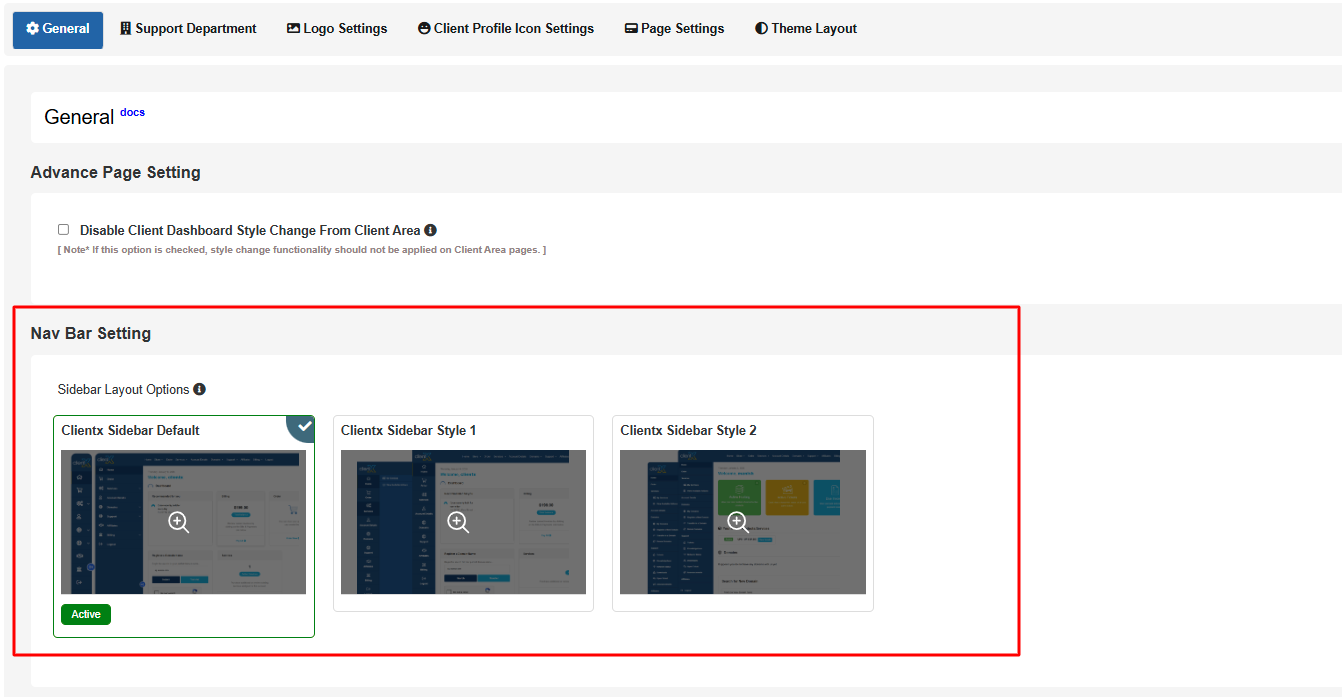
Change the Side Nav Bar Style
ClientX provides three sidebar layout options. Select one based on your preferred UI:
-
ClientX Sidebar Default - The standard ClientX sidebar layout with a clean and familiar navigation structure.
-
ClientX Sidebar Style 1 - A modern layout featuring child menus that expand to the right side of the main menu for a streamlined navigation experience.
-
ClientX Sidebar Style 2 - A modern and latest sidebar design where child menus expand below the parent menu, providing a structured and intuitive navigation flow.
Change the Position of the Navigation Bar
You can control how navigation menus are displayed in the client area:
-
Both Menu Bar - Displays both the top navigation bar and the side navigation menu for full accessibility.
-
Side Menu Bar -Displays only the side navigation menu for a streamlined dashboard layout.
-
Top Menu Bar -Displays only the top navigation bar for a clean, minimal interface.

Change the Top Navigation Bar Style
ClientX supports two top navigation styles:
-
Custom Navbar -Displays the ClientX custom-designed navigation bar for an enhanced and modern user interface.
-
WHMCS Primary Navbar - Displays the default WHMCS primary navigation bar.

Display Navigation Bar on the Order Form
Control whether the navigation bar appears on the order form pages:
-
Yes – Displays the navigation bar on the order form.
-
No – Hides the navigation bar on the order form.

Control Navigation Bar Visibility for Users
Choose when the navigation bar should be visible:
-
Both - Visible to all users (guests and logged-in users).
-
Without Login - Visible only to non-logged-in users.
-
After Login - Visible only to logged-in users.

Language Settings
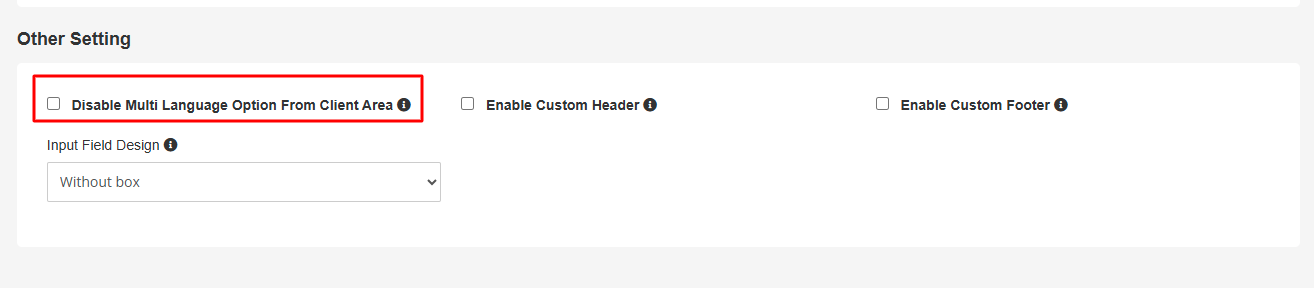
Disable Multi-Language Option
-
Enable this option to hide the language switcher from the client area.
-
This setting is useful if your site supports a single language.
Input Field Design
Choose the preferred input field style for forms:
With Box – Displays input fields with bordered box styling.
Without Box – Displays input fields with a minimal, borderless design.

