
How to Change Slider Content in Layout 2
Layout 2 includes a built-in slider system that can be fully managed from the admin panel.
Step 1: Open Slider Settings
-
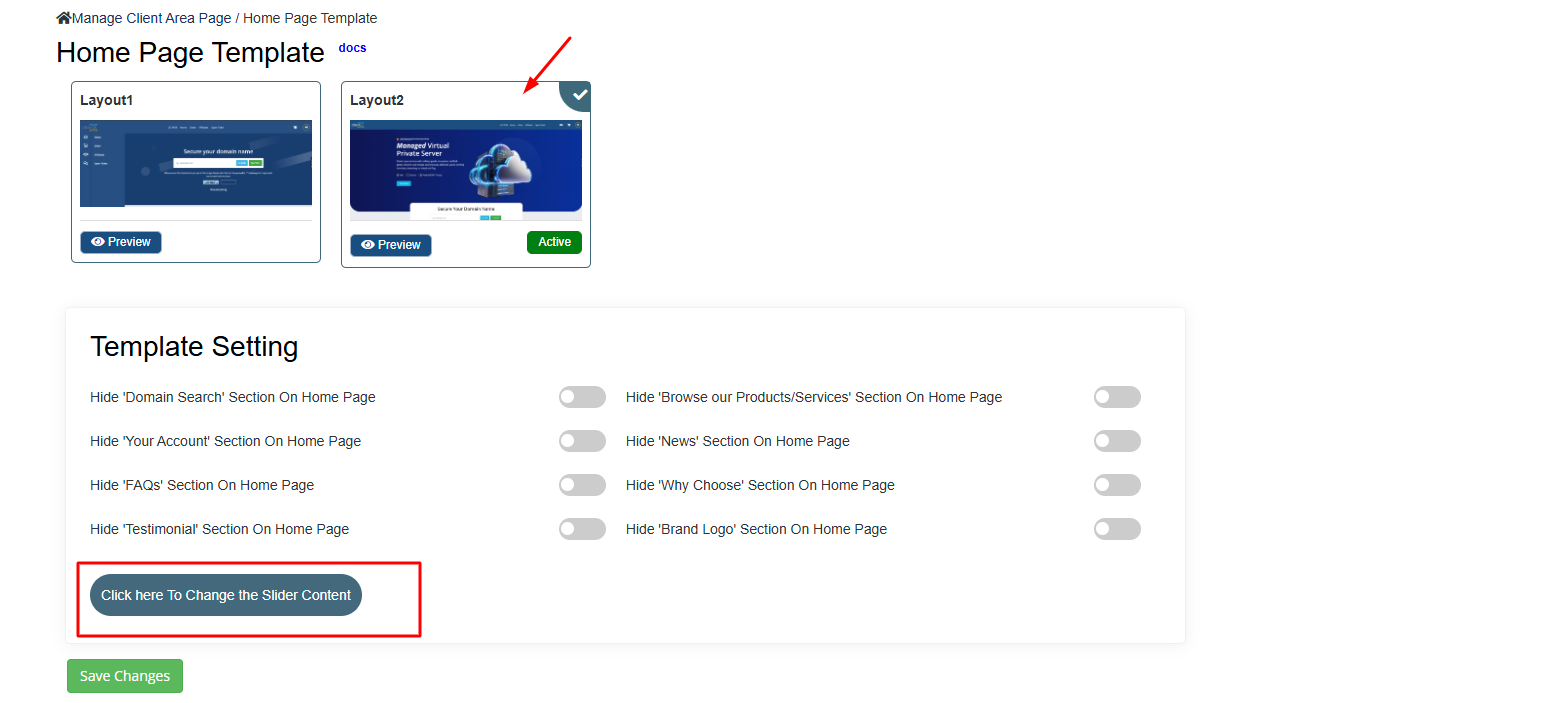
Under the Template Settings section, click the Change Slider Content button.
Step 2: Access Slider Content Page
-
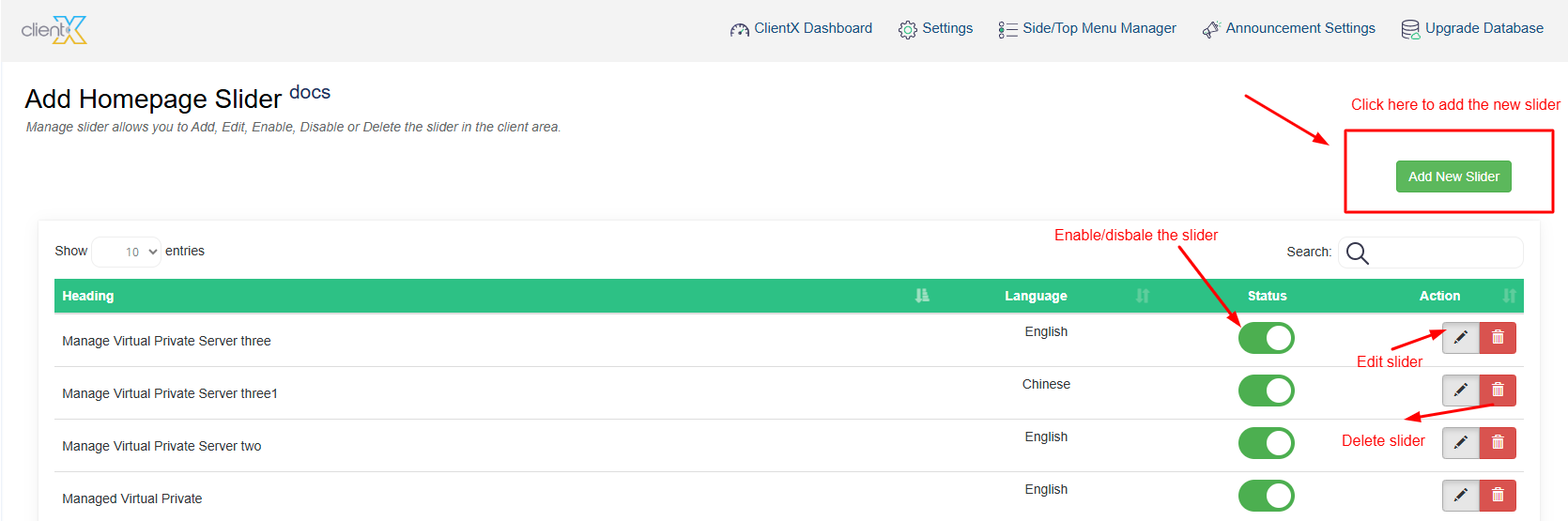
You will be redirected to the Slider Content management page.
-
Click Add New Slider to create a new slider.
Step 3: Add a New Slider
-
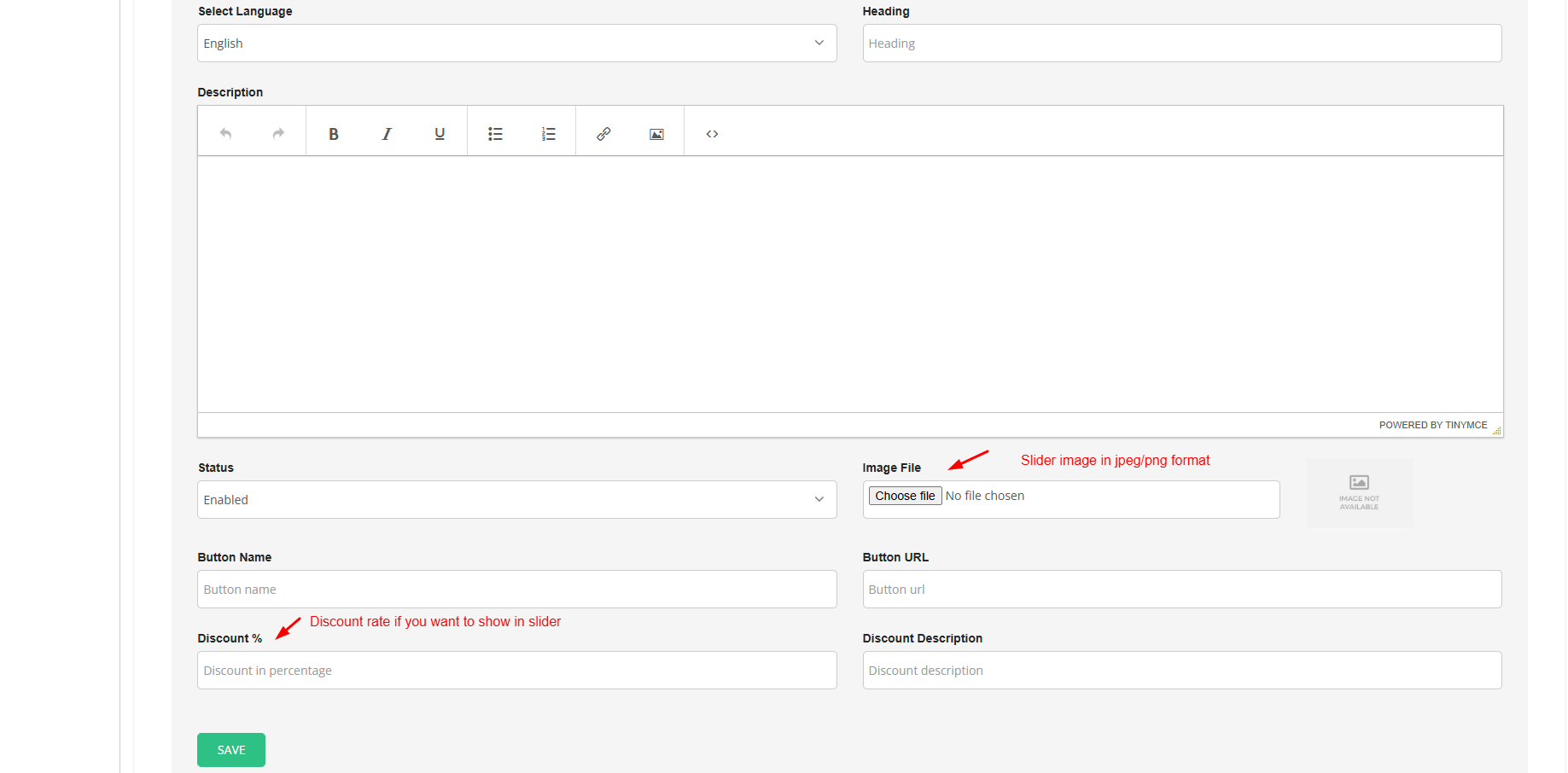
Fill in all the required slider details such as title, content, images, and settings.
-
Click Save Changes to add the slider.
Step 4: Frontend Preview After Adding Slider
-
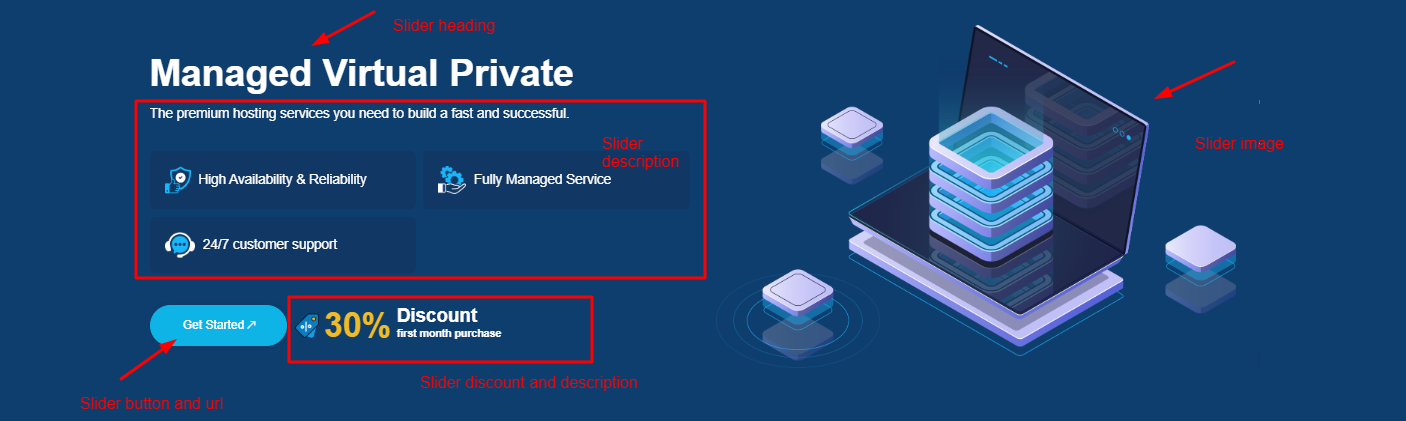
Once added, the slider will immediately appear on the Home page frontend.
Step 5: Edit Existing Slider
-
To update an existing slider:
-
Click the Edit icon
-
Modify the slider details as required
-
Save the changes
-
Step 6: Enable or Disable Slider
-
Use the toggle button in the Slider Content list to enable or disable any slider.
-
Changes will reflect instantly on the frontend.
Step 7: Delete Slider
-
To permanently remove a slider:
-
Click the Delete icon in the Slider Content list
-
-
The slider will be completely removed and will no longer appear on the frontend.
