WGS ClientX – Client Area & Home Settings Guide
How to Change the Layout of the Home Page
The ClientX theme provides flexible Home page layouts with built-in customization options, allowing you to control content visibility and slider behavior easily.
Accessing Home Page Layout Settings
Before configuring the Home page layout, follow these steps:
-
Log in to your WHMCS Admin Panel.
-
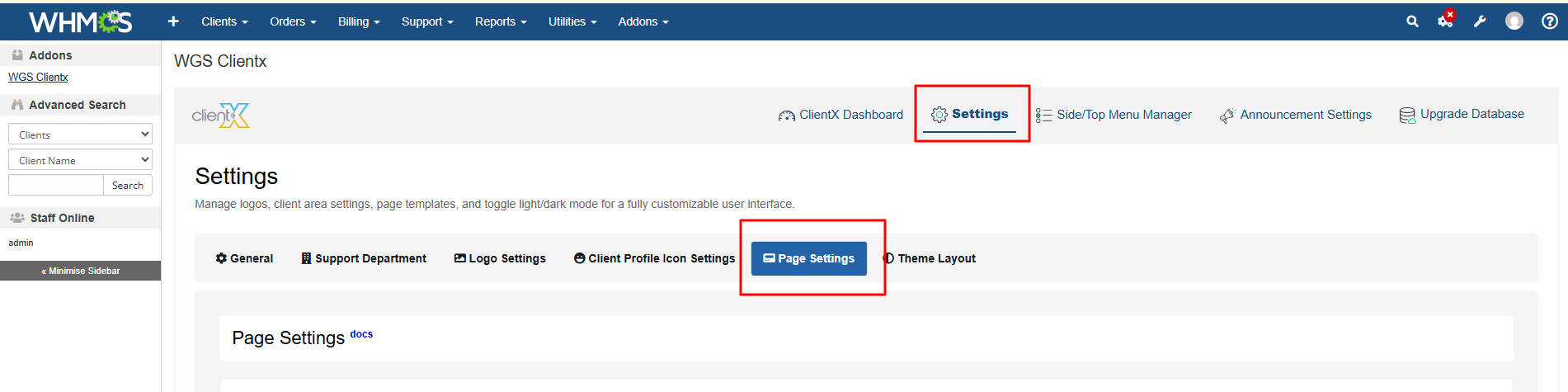
Navigate to Addons > WGS ClientX > Settings.
-
Click Settings and open the Page Settings tab.
Managing Home Page Layouts
-
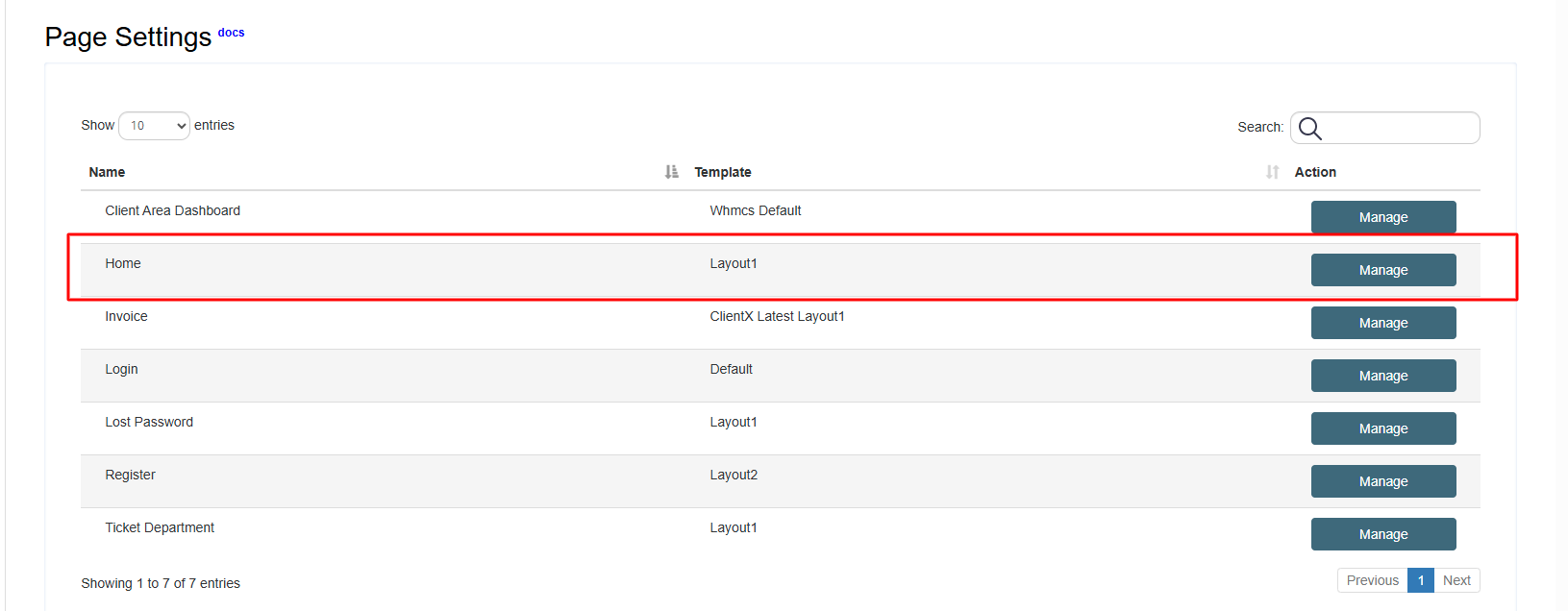
Under the Page Settings tab, locate Home.
-
Click the Manage button.
-
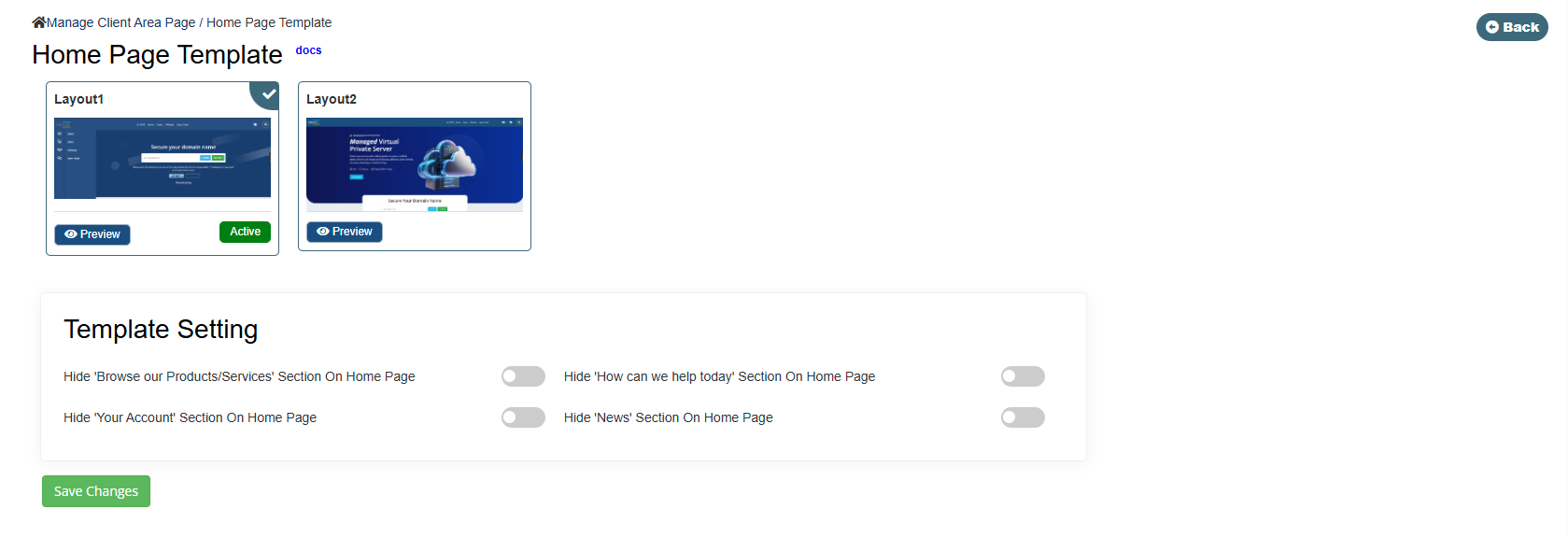
You will be redirected to the Home Page Template screen.
Available Home Page Layout Options
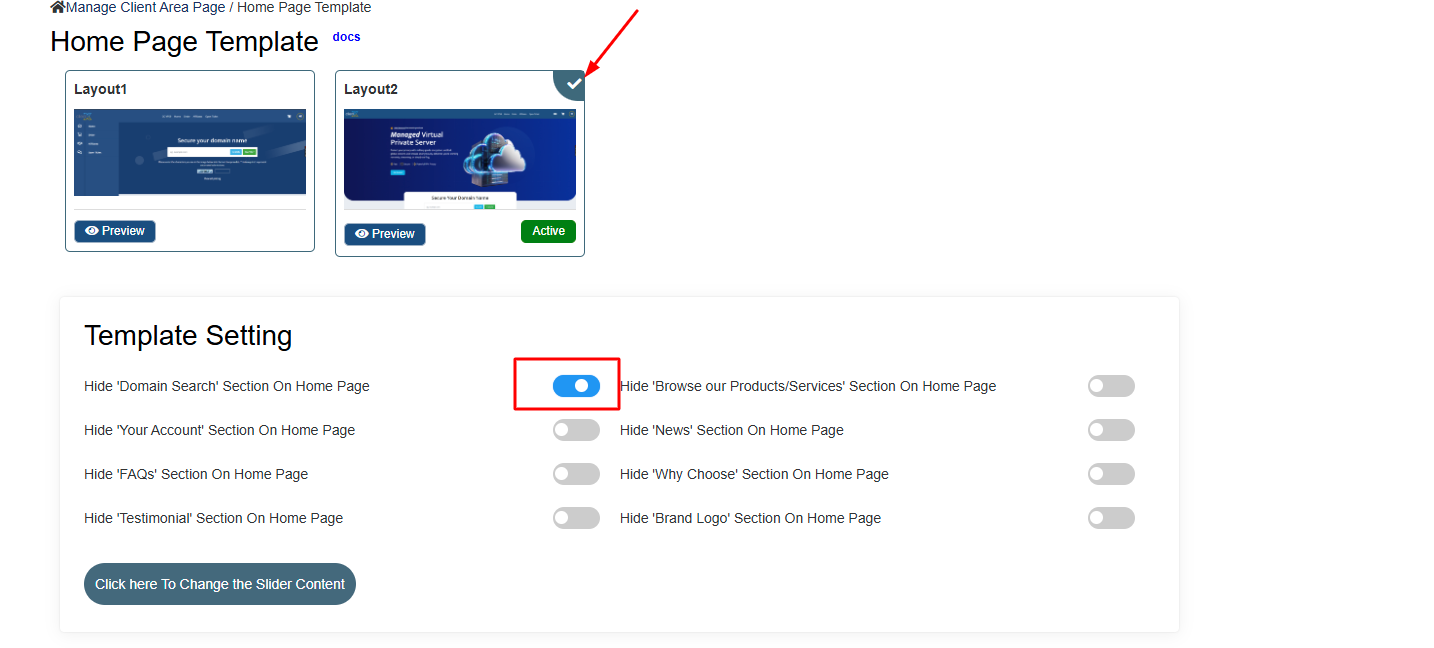
On this screen, you will find two Home page layout options:
-
Layout 1
-
Layout 2
Select the desired layout and click Save Changes to apply it.
Layout 1
Frontend Preview
-
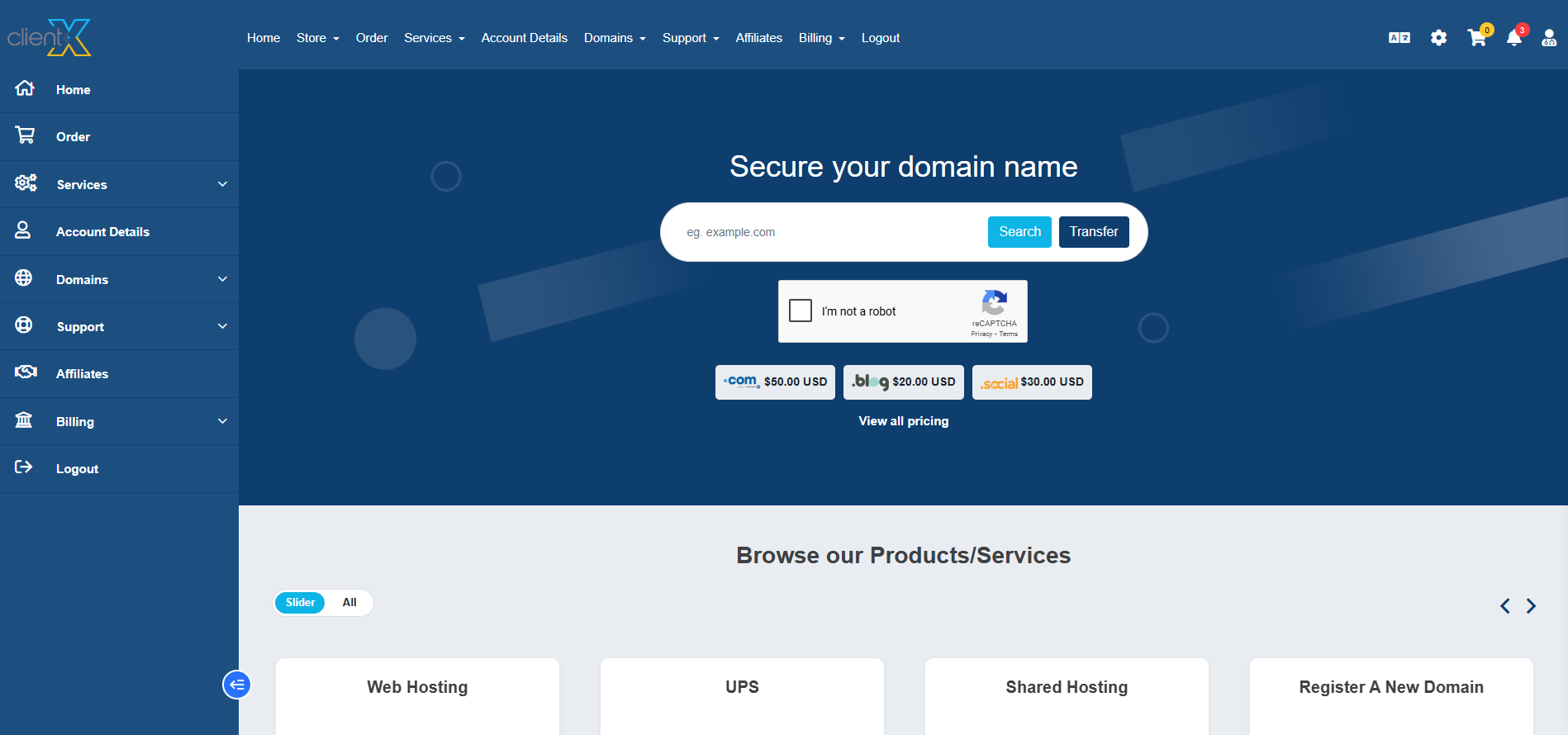
When Layout 1 is selected, the Home page will appear on the frontend as shown below.
Template Settings
-
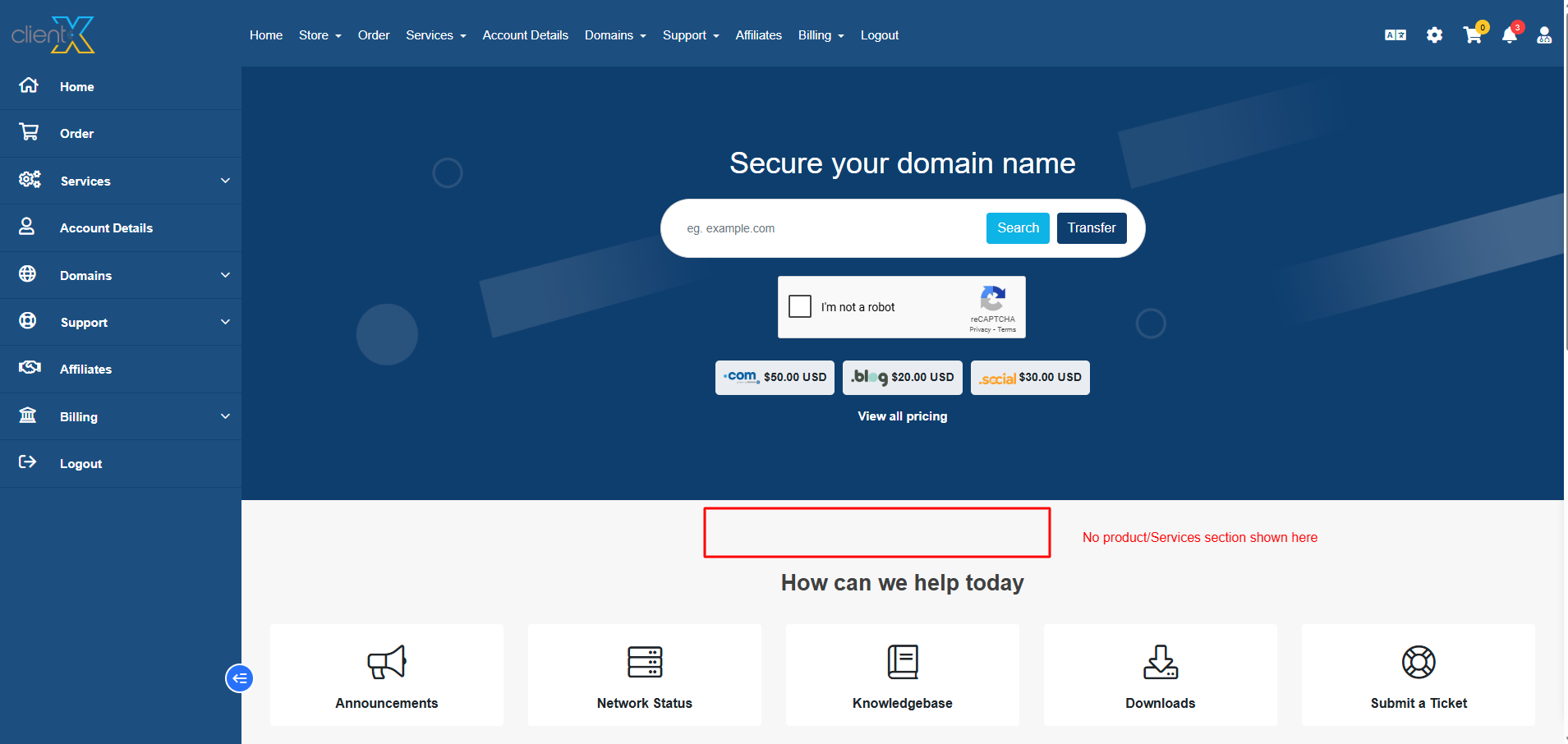
Layout 1 includes Template Settings that allow you to:
-
Show or hide specific Home page sections
-
Control content visibility based on your requirements
-
After updating the settings, click Save Changes to apply them.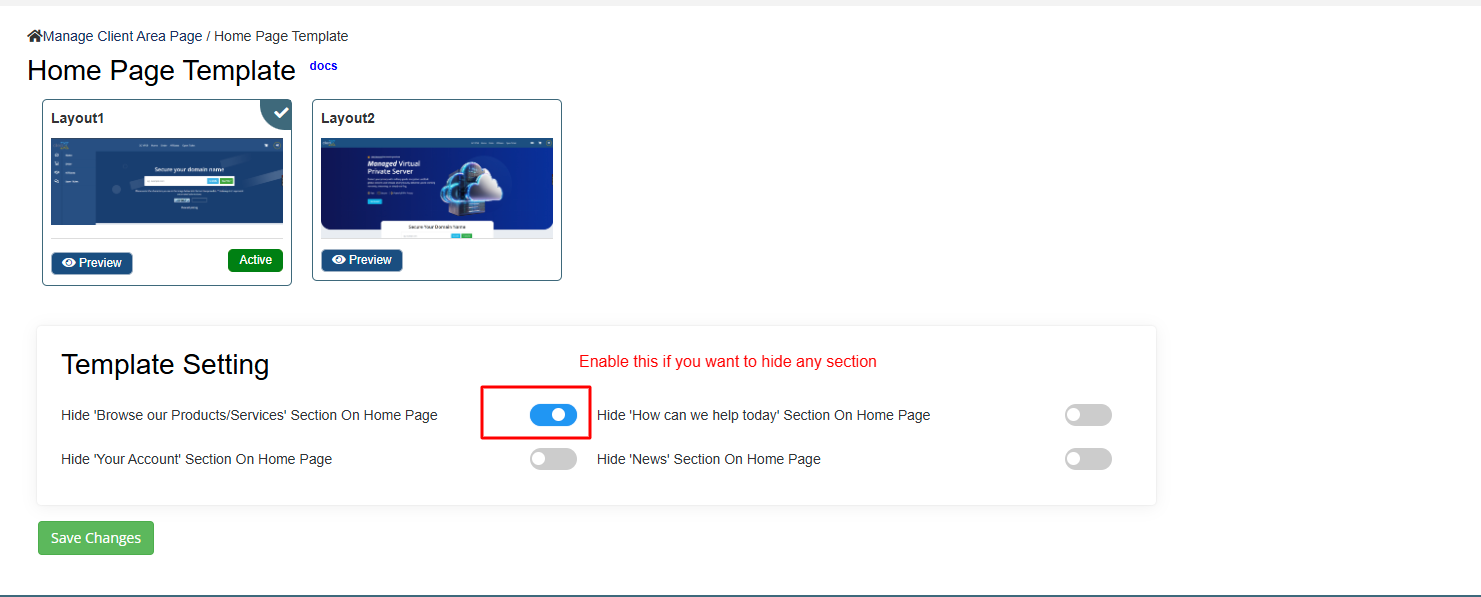
Layout 2
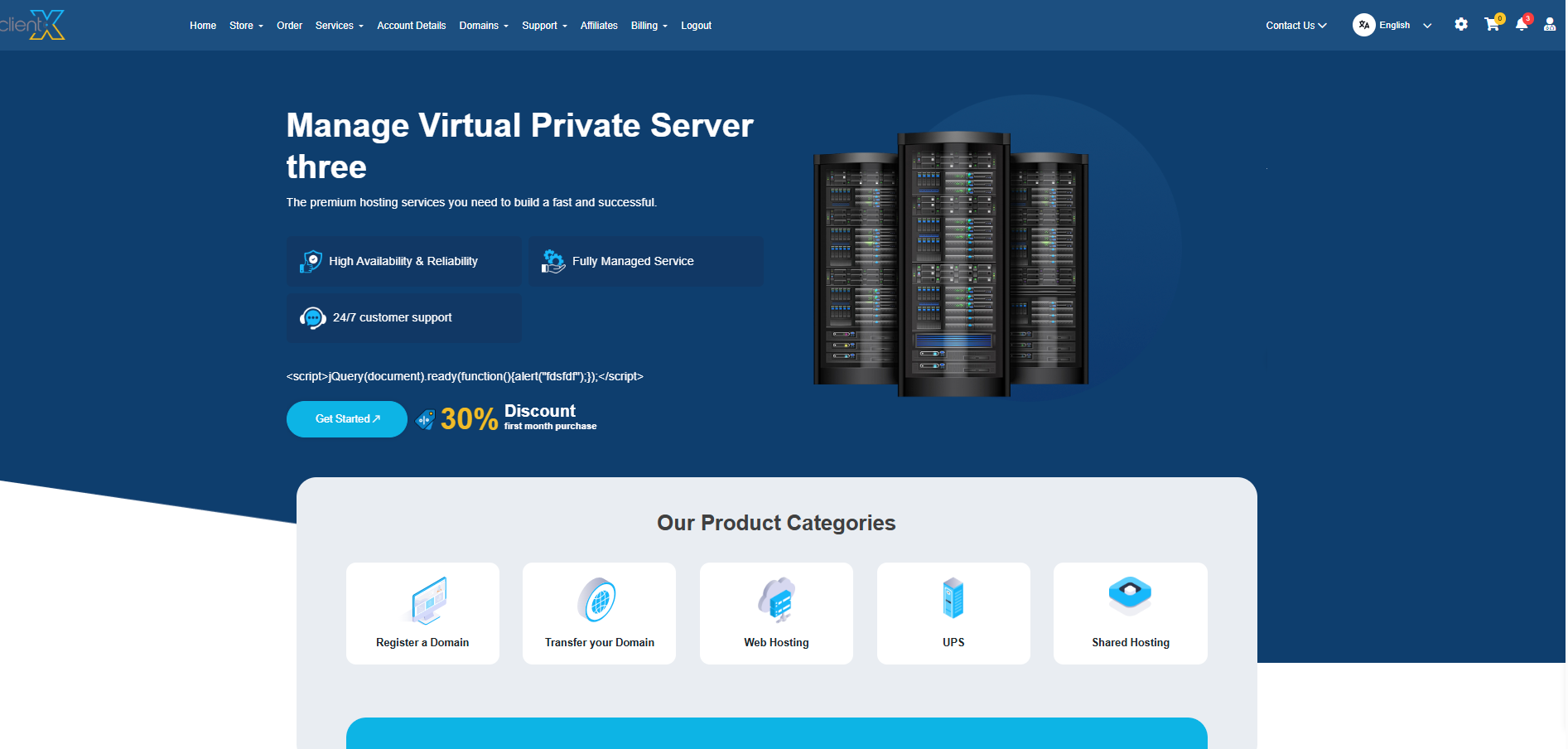
Frontend Preview
-
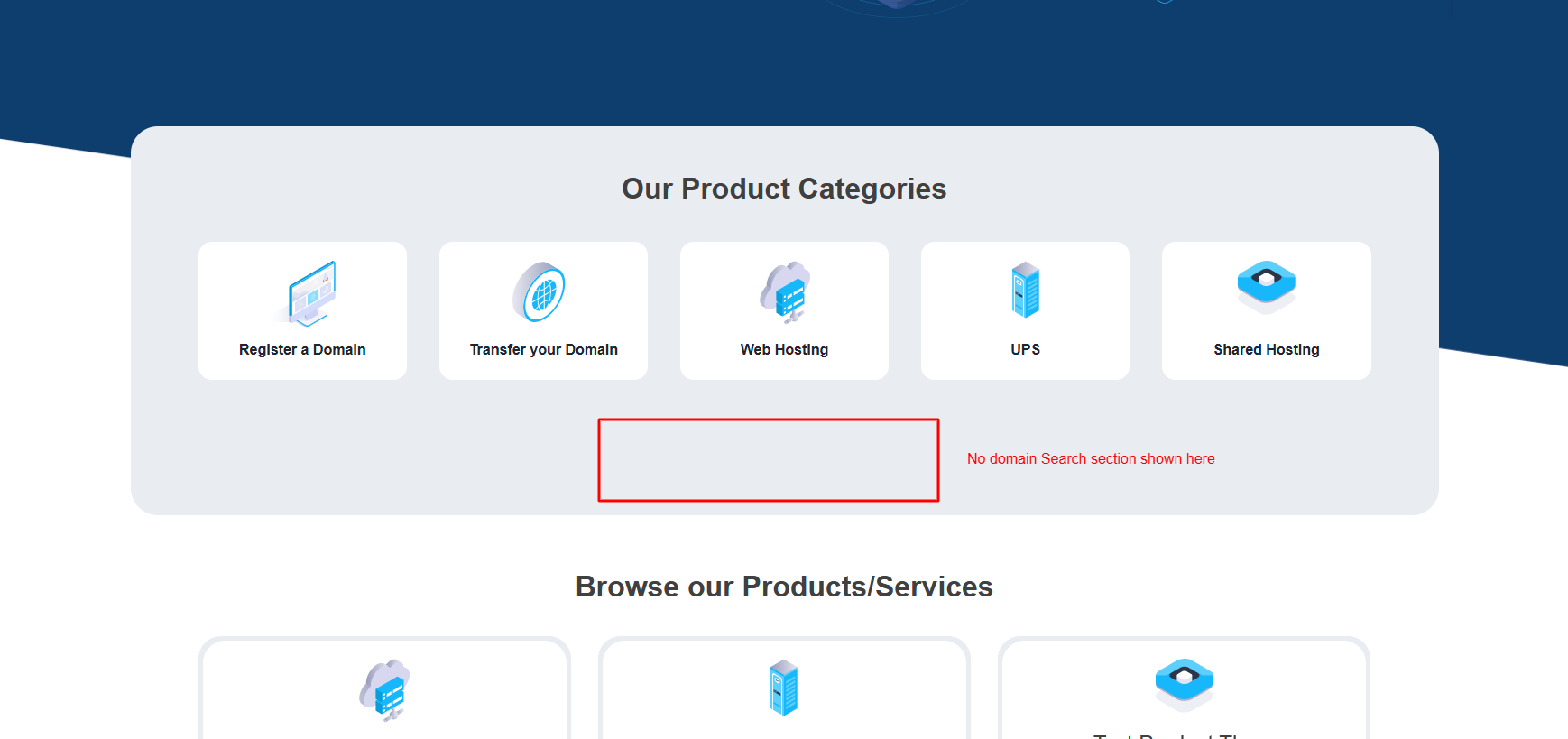
When Layout 2 is selected, the Home page will display with a different structure and design.
Template Settings
-
Layout 2 also includes dedicated Template Settings, allowing you to:
-
Enable or disable specific Home page sections
-
Manage slider content dynamically
-