
HostX : How to do cookies banner setting?
Step 1: Log in to WHMCS Admin
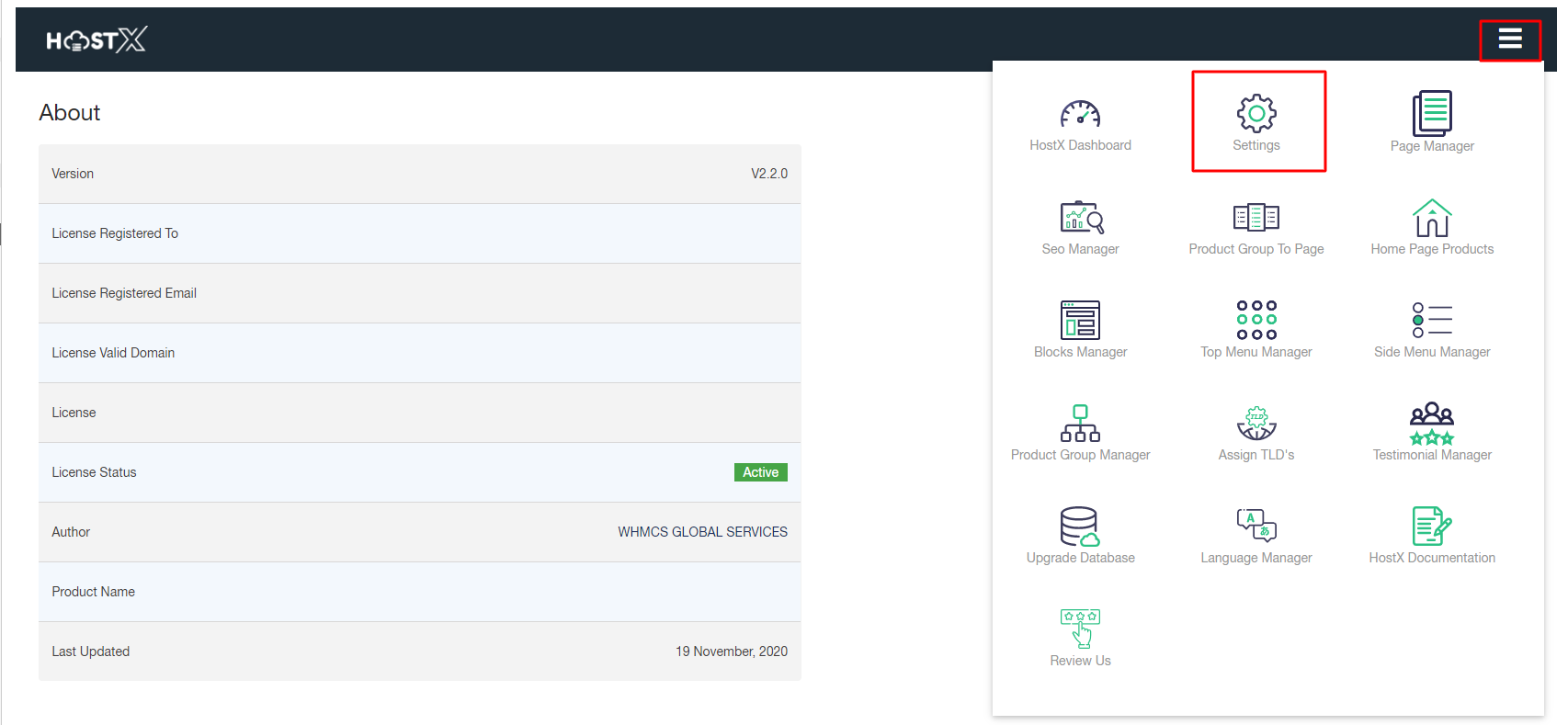
Step 2: Go to Add-ons > WGS HostX >Setting
In order to change your Cookies Banner Settings,
Step 1.click on the Cookies Banner Settings dropdown menu and you will get multiple options there:
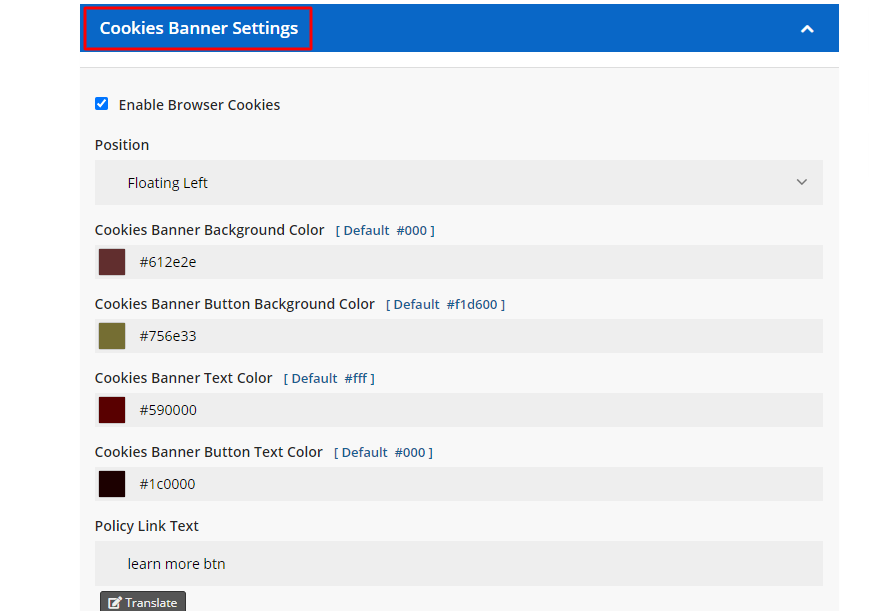
- Enable Browser Cookies: Check this option if you want to track the browsing behavior of your client. You can set up the cookies policy pop-up position and other settings using following options:

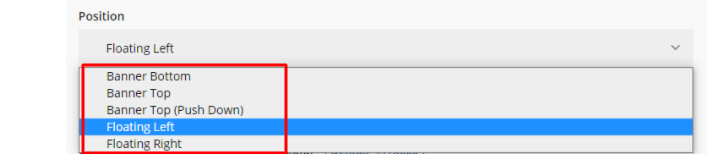
- Position: Set the Cookies Banner positions to Banner Bottom, Banner Top, Banner Top (Push Down), Floating Left, or Floating Right as per your convenience.
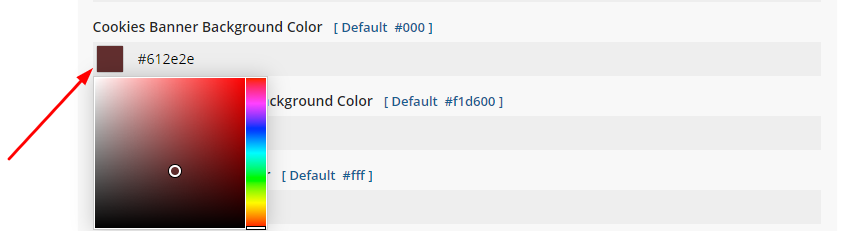
- Cookies Banner Background Color [ Default #000 ]: Set up the desired background color for your cookies banner.
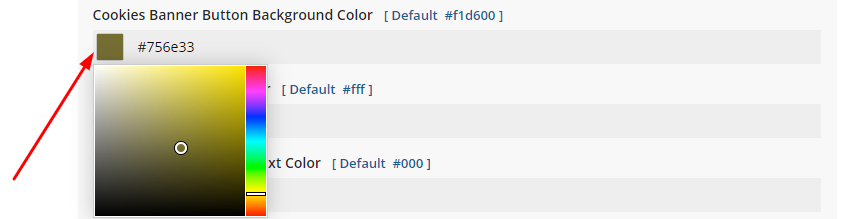
- Cookies Banner Button Background Color [ Default #f1d600 ]: Set up the required background color for the cookies button.
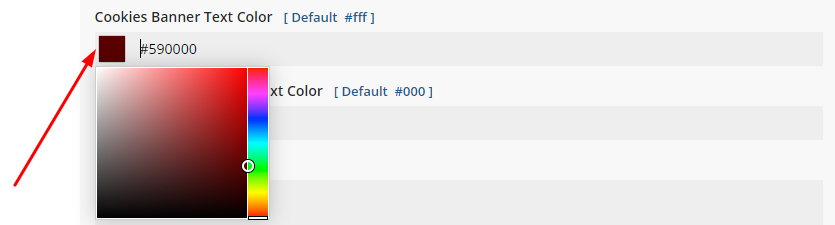
- Cookies Banner Button Text Color [ Default #000 ]: Choose the required text color for the banner button using this option.
- Policy Link Text: Enter the text you want to display on your client side to read your regulations and policies.
Note: You can convert the Policy link text to other languages just by hitting the Translate button.

- Policy Link: If you have a separate web page for policies, then you can link that page here just by entering its URL.

- Dismiss Button Text: Enter the text you want to show your clients to dismiss the cookies banner from the screen.
Note: You can translate this Dismiss button text into other languages for hitting the Translate button.

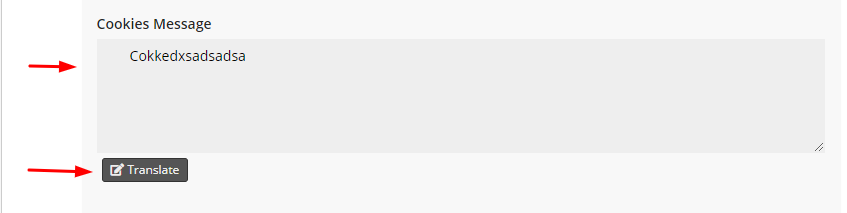
- Cookies Message: Type the text you want to display on your cookies pop-up.
After customization, the final result will display like this
.
